1. Adding a task in plain English
Free on every plan.
Type the whole thing into one line and Tickbase reads the date, time, repeat, list, tag and priority out of it. As you type, chips under the box show what it understood; tap a chip to change it.

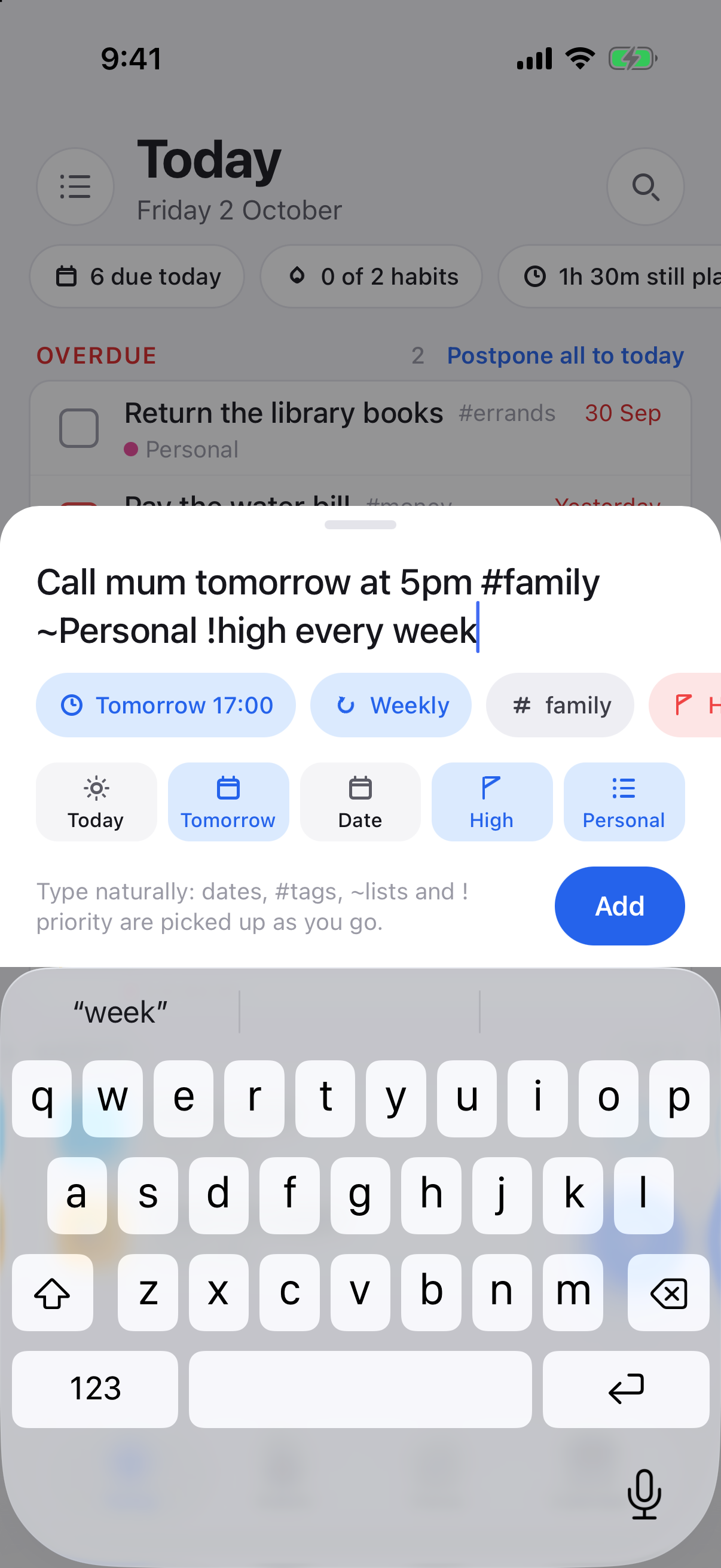
The same sentence on the web (left) and the phone (right): every part of it becomes a chip you can tap to change.
- Dates and times: tomorrow, friday, next monday at 5pm, 12 oct, in 3 days.
- Deadlines: by sunday, before the 15th. Saying by sets a deadline rather than planning the work for that day — see deadlines below.
- Repeats: every day, every weekday, every 2 weeks, every month on the 1st.
- List: ~Personal puts the task in the list called Personal.
- Tag: #family tags it; a tag you have not used before is created.
- Priority: !high, !medium or !low.
So Call mum tomorrow at 5pm #family ~Personal !high every week becomes a weekly high-priority task in Personal, tagged family, first due tomorrow at five.
It only takes a date where one is meant. Review the 3rd draft, read the friday briefing, replace the sun visor and a day at the spa are titles, not dates: the word is describing the thing after it. Put the day at the end, or after on, by, next or every, and it is read as a date. Whatever it understood is in the chips before you press enter, so you always see it coming.
Web and desktop: the box is at the top of every list; press N anywhere to jump to it. Phone: the blue + button on Today.
Notes, formatted
Open a task and write in its notes. Tickbase understands Markdown, so the note reads formatted as soon as you leave it; click or tap it to edit the text again. The note is saved exactly as you typed it, and syncs and encrypts like the rest of the task.

- Headings: start a line with
#,##or###. - Lists:
- milkfor a bullet,1. firstfor a numbered list; indent a line to nest it. - Checklists:
- [ ] chalk the specials board. Tick the box in the formatted note and the line becomes- [x]; nothing else in the note changes. - Emphasis:
**bold**,*italic*,~~struck through~~and`code`. - Quotes, code and lines: a line starting with
>is a quote, three backticks start and end a block of code, and---on its own draws a line. - Links:
[menu proofs](https://example.com), or just paste a web address. Links open in your browser, and e-mail addresses in your mail app. Nothing in a note is ever run or loaded.
2. Due dates and deadlines
Free on every plan.
A task can carry two different dates, and mixing them up is the usual reason a to-do list stops being believable.
- The due date is the day you plan to do it. It is yours to move: push it to tomorrow, postpone the whole overdue pile in one go, drag it to another day on the calendar. Nothing is broken when it moves.
- The deadline is the day it has to be done by. It is a fact about the world — the passport expires, the invoice is late, the deposit is gone — so it does not move when your plan does.
“Finish the book by Sunday” is a deadline of Sunday. It does not say you will sit down on Sunday; it says Sunday is the last moment it can still be true. That is why Tickbase reads the word by as a deadline and leaves the plan alone:
- finish the book by sunday — deadline Sunday.
- ship it before the 15th — deadline the 15th.
- finish the book on sunday, report due friday, or a bare finish the book sunday — a due date, as before.
- draft the slides tomorrow by friday — both: do it tomorrow, it has to be done by Friday.

A task on the phone. Every detail is a labelled chip, grouped into When (date, time, deadline, after, repeat, work sessions) and Details (list, priority, estimate, target). On a free account, chips Premium would unlock sit together in a Premium group at the end.
Two sentences deliberately stay as they were. Call mum by 5pm keeps its due time, because a deadline is a day and a bare time after by is the time you want reminding at. And a repeating task keeps its due date — pay rent every month by the 1st wants the 1st each month, which a deadline would not follow.
Where the task ends up depends on where you type it. Adding finish the book by sunday in Today plans it for today and puts the deadline on Sunday. Adding it in the Inbox or a list leaves the plan open: the deadline is set, and you decide later which day you will actually do it.
- Seeing it: a deadline shows as an hourglass on the task, amber inside three days and red on the day itself or once it has passed. The task's own screen says Deadline in 3 days, Deadline today or Deadline passed.
- Deadline pace: shows the days left (3 days left) instead of the date, and on a task with subtasks or a target, whether you're on course for the deadline at the pace you've kept so far: 1 of 7 done · about 4 days late at this pace; 2 a day makes it. The weekly review then lists the deadlines at risk. With it on, moving a task past its deadline (postponing it, dragging it, Tomorrow) brings a short note saying so, with Undo, and the task's hourglass stays red with Planned after its deadline until you move it back. Today and Next 3 days also start with Deadlines soon: deadlines in the next three days, or already gone, of tasks the list isn't showing (one with no date, or planned after its deadline), so none slips past unseen; its × hides it until tomorrow on every device. From Tickbase 1.4.3 it's on unless you switch it off in Settings → General → Deadline pace, and with it off a deadline is its date and colour.
- Setting one by hand: open the task and use Add a deadline on the web and desktop, or the Deadline chip on the phone. Give it a time too if it has one (the box beside the date, or the Deadline time chip), and it counts as passed from that minute rather than from midnight. Clearing it is the × beside it.
- Smart lists still go by the due date. Today, Tomorrow and Next 7 days are about what you plan to do, so a task with only a deadline waits in the Inbox or its list until you give it a day. The hourglass is there to remind you to.
- Targets (see resolutions and targets) measure your pace against whichever date the number has to be there by — the due date if there is one, the deadline otherwise. So write the novel target 40,000 words by friday still tells you how many words a day that is.
- Repeating tasks: a repeat counts from the task's date, and the task says which (Repeats from its date, Today). When you tick it off, the deadline moves on with it, the same number of days after the date: due on the 12th with a deadline on the 15th, next month's is due on the 12th with a deadline on the 15th. A task with a deadline and no date repeats from its deadline, so pay the rent every month with a deadline on the 15th comes round on the 15th each month.
- Deadlines are included when you export your tasks to CSV or JSON.
A task that waits for another
Free on every plan.


A task waiting for another, greyed at the end of its list, on the web (left, with what it waits for in its details) and the phone (right).
Some things cannot start until something else is done: the invoice goes after the design is finished, the paint after the sanding. Give a task After and it waits for that one.
- Setting it: open the task and choose Wait for another task on the web and desktop, or the After chip on the phone, then pick the task it waits for. Search by name; if the first step is not written down yet, type it and choose Add … and wait for it, and it is made in the same list.
- Where it shows while it waits: the views about days leave it out — Today, Tomorrow, the next 3 and 7 days, the calendar, the matrix and the morning summary — and its reminders do not ring. The views about lists show it greyed after the tasks you can do, marked After “…”: its list, the Inbox, All, tags, search and saved filters.
- When the first is ticked it turns up with the date it was given, overdue if that has passed, and Tickbase says Ready now. Reopening the first makes it wait again.
- One task to wait for, and only one, which covers nearly every real case. It cannot wait for itself, for a task that is waiting for it, or for a repeating task, which is never finished for good. In a shared list it waits for a task in the same list, so everyone sees the same thing.
Later, and the someday shelf
Free on every plan.
Not everything belongs on this week. Put a task off and it gets out of the way until it matters, without losing its list, its notes or its date.
- Setting it: choose Later in a task's details or its menu (right-click on the web and desktop, a long press on the phone): tomorrow, next week, in three weeks, next month, a day you pick, or Someday.
- A day to come back: until then the task leaves Today, the next days, the calendar, the Inbox, the morning summary and the app icon's count, and sits greyed at the end of its list with From and the day. On the day it comes back by itself. Reminders set for that day or after still ring; earlier ones do not.
- Someday parks a task with no day at all, for the things you might do and do not want to look at every morning. It stays on the shelf until you take it off, and never reminds you.
- The Someday list in the sidebar (and the phone's menu) holds both, the shelf first, then what is coming back, soonest first. A task added while you are looking at it goes on the shelf. Bring it back now in its details puts it back where it was.
- The weekly review leaves them out of Unscheduled and Not touched in 30 days: putting something aside on purpose is neither.
How a repeat is really going
Free on every plan.


How often a repeating task is done on time, and an offer when the rule and the habit disagree, on the web (left) and the phone (right).
A repeating task is a habit nobody measures. Once you have finished one a few times, its details say how often it was done on time over the last three months (longer for a monthly task). When the days between finishes are clearly more than the repeat says — every Monday, done about every ten days — Tickbase offers the repeat that fits: Change the repeat to “Every 10 days”? Change takes it; Keep it leaves the repeat alone and that offer is not made again. It is counting, not guessing, and nothing changes unless you choose it.
3. Today, and the order things come in
Free on every plan. The month calendar is free too; the week and day views, dragging a task onto an hour, and durations are Premium.
Today shows what is overdue first, then what is due today, then the habits you have not done yet. Tasks in each group are ordered by time, then priority. A count in the header says how many are left.


Overdue first, then today, then habits, on every platform. The sidebar on the web shows lists grouped into folders and a Filters section.
- Postpone all to today at the top of the overdue group moves every overdue task to today in one go; their times are kept.
- Week numbers: Show week numbers (Settings → Theme on the web and desktop, Settings → Appearance on the phone) puts a "Week 38" line at the top of Today on the first day of each week, and week numbers in the calendar. It can be dismissed for the week.
- Countdowns falling in the next few days sit above the list as pills; tap one to open the countdown.
4. Selecting and editing several tasks at once
Free on every plan.
Pick a few tasks and change them together: give them all a date, move them to a list, add or remove a tag, set a priority or an estimate, complete them, or delete them. Every bulk change has one Undo.

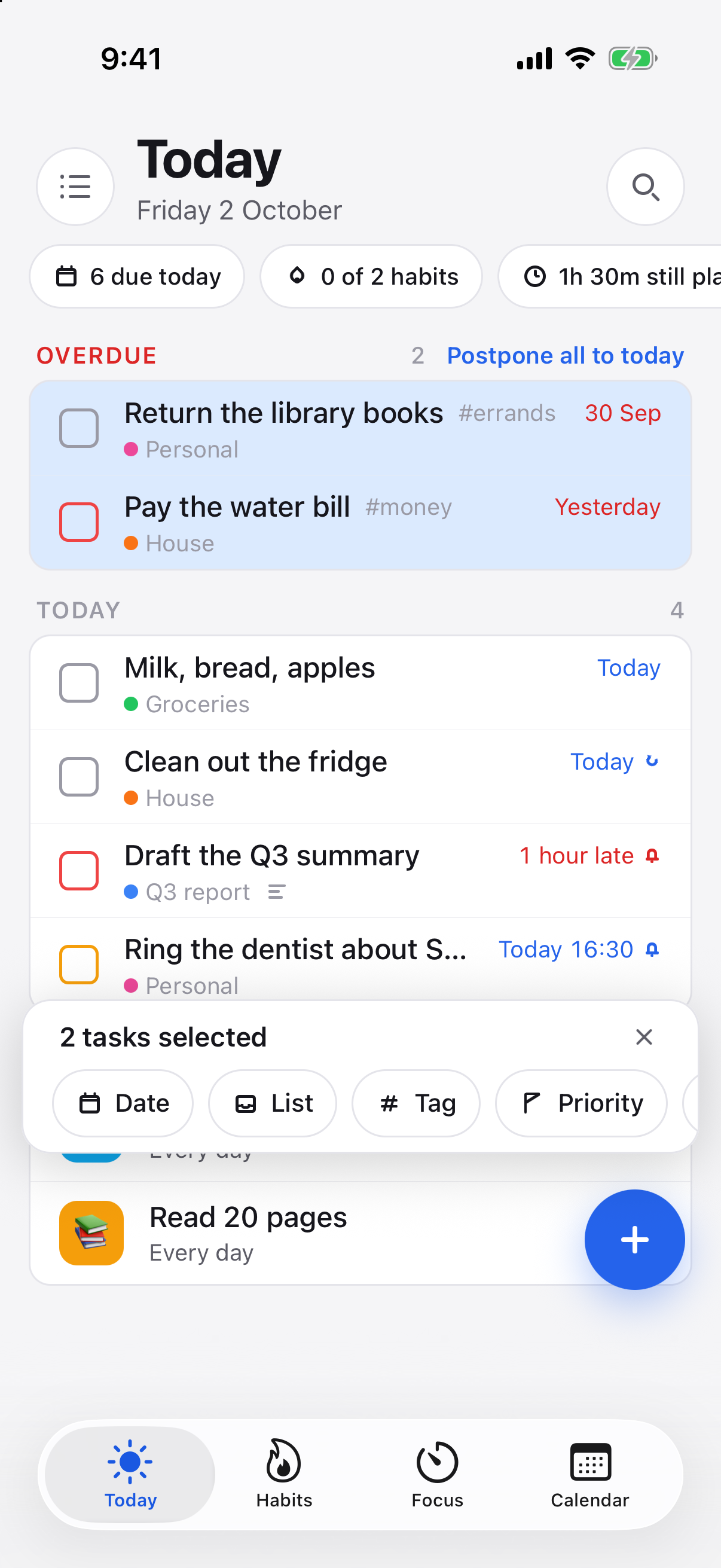
Three tasks selected on the web (left), two on the phone (right), each with the bar of things you can do to them all at once.
Web and desktop
- Cmd-click (Ctrl-click on Windows and Linux) a task to select it; Cmd-click another to add it, or the same one again to take it out.
- Shift-click a task to select everything between it and the last one you picked, within that group of the list.
- The bar appears along the bottom as soon as anything is selected, with a count. Press Esc or the × to clear the selection. A plain click on a task still opens it.
iPhone and Android
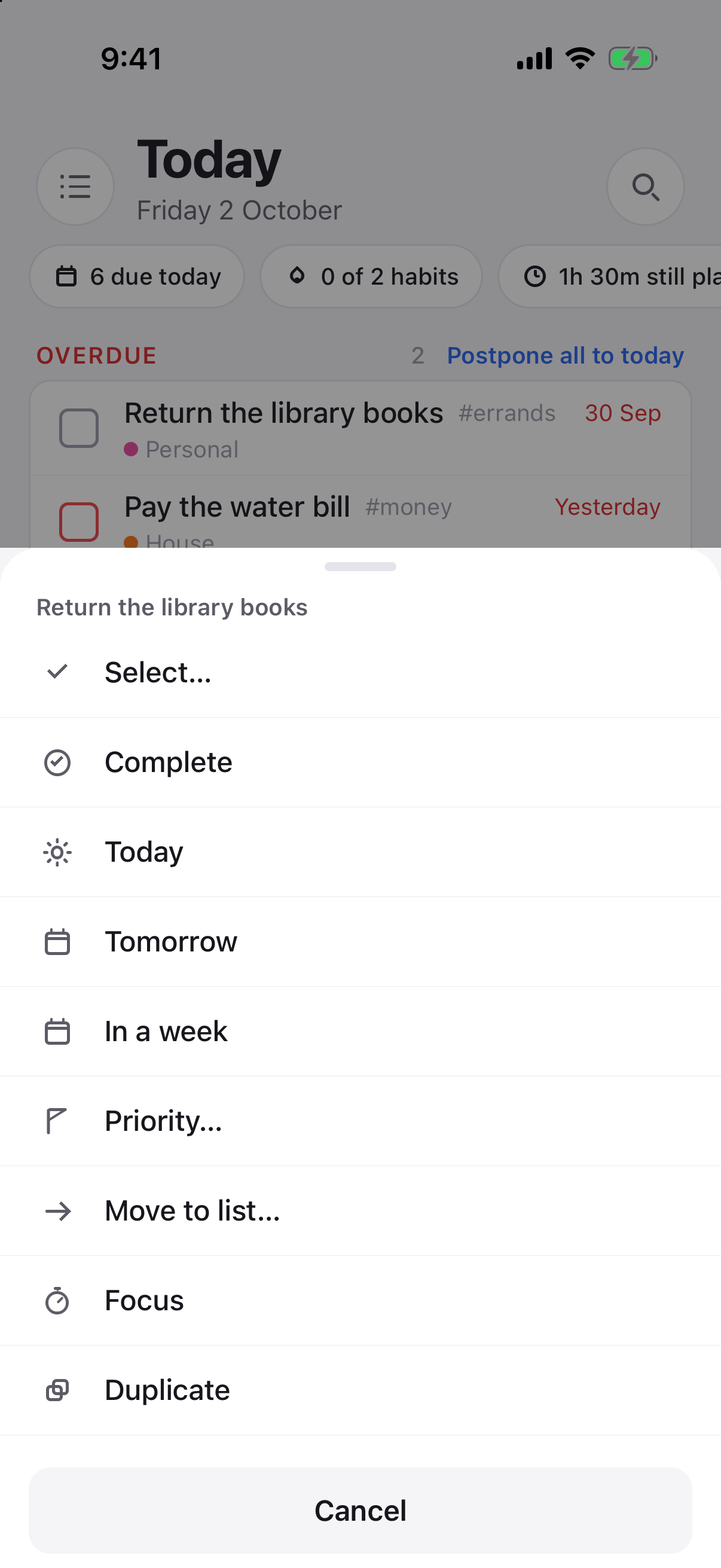
Long-press a task and choose Select….
- Long-press any task and choose Select…. That task is selected and the bar appears.
- Tap other tasks to add them, or tap a selected one to take it out.
- Use the bar: Date, List, Tag, Priority, Estimate, Complete, Delete. The × puts the bar away.
5. Lists, sections, folders and tags
Free accounts have 5 lists plus Inbox; Premium has no limit. Folders and tags are free; duplicating a list as a template is Premium. A list someone shares with you never counts.
Making a list
Web and desktop: the + beside Lists in the sidebar. Phone: open the drawer (the ☰ button on Today) and tap Add list at the bottom. Give it a name and a colour. Free accounts can have five lists; a list somebody shares with you never counts.
Folders
Once you have more than a handful of lists, group them. A folder is only a grouping in the sidebar: the lists stay exactly what they are.

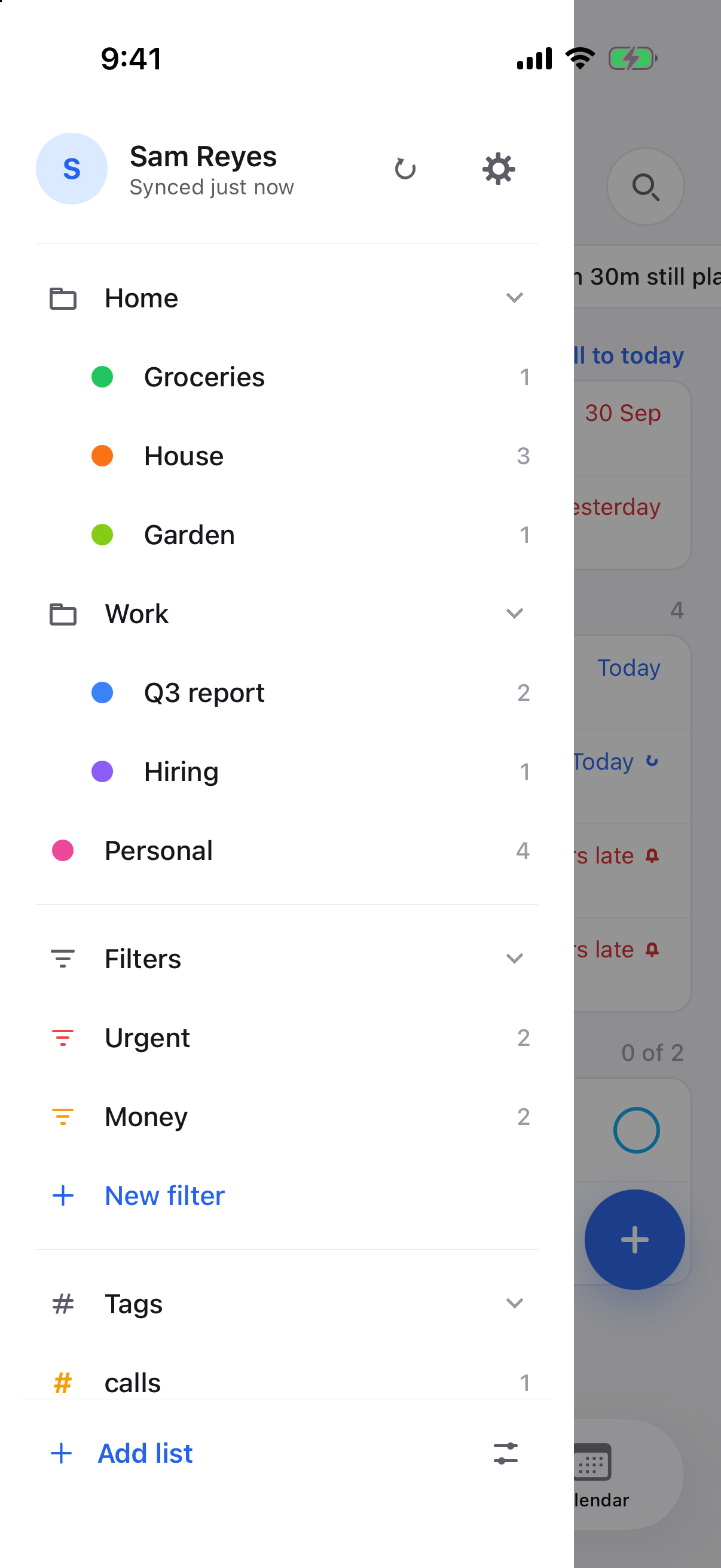
Creating a list on the web, with the folder picker (left). The phone’s drawer with two folders, the Filters section and tags (right).
- Make a folder. Web and desktop: the folder button beside Lists. Phone: open the drawer, tap the sliders button at the bottom to enter manage mode, then New folder.
- Put a list in it. Open the list's menu (the ⋯ beside it on the web; long-press it on the phone) and choose Move to folder, or pick the folder when you create or edit the list.
- Fold it away. Tap the folder's name. A closed folder still shows how many open tasks are inside. Which folders are open is remembered on each device separately.
- Rename or delete from the folder's menu (⋯ on the web; long-press on the phone). Deleting a folder puts its lists back at the top level; nothing else changes.
Folders follow your account, so one made on the laptop is in the phone's drawer too. A shared list can sit in a different folder for each person who has it.
Adding several tasks at once
New in Tickbase 1.4.5, and free. For a run of tasks that only differ by a number, such as the chapters of a book, the weeks of a course or the rooms to paint, make them all in one go instead of typing each one.
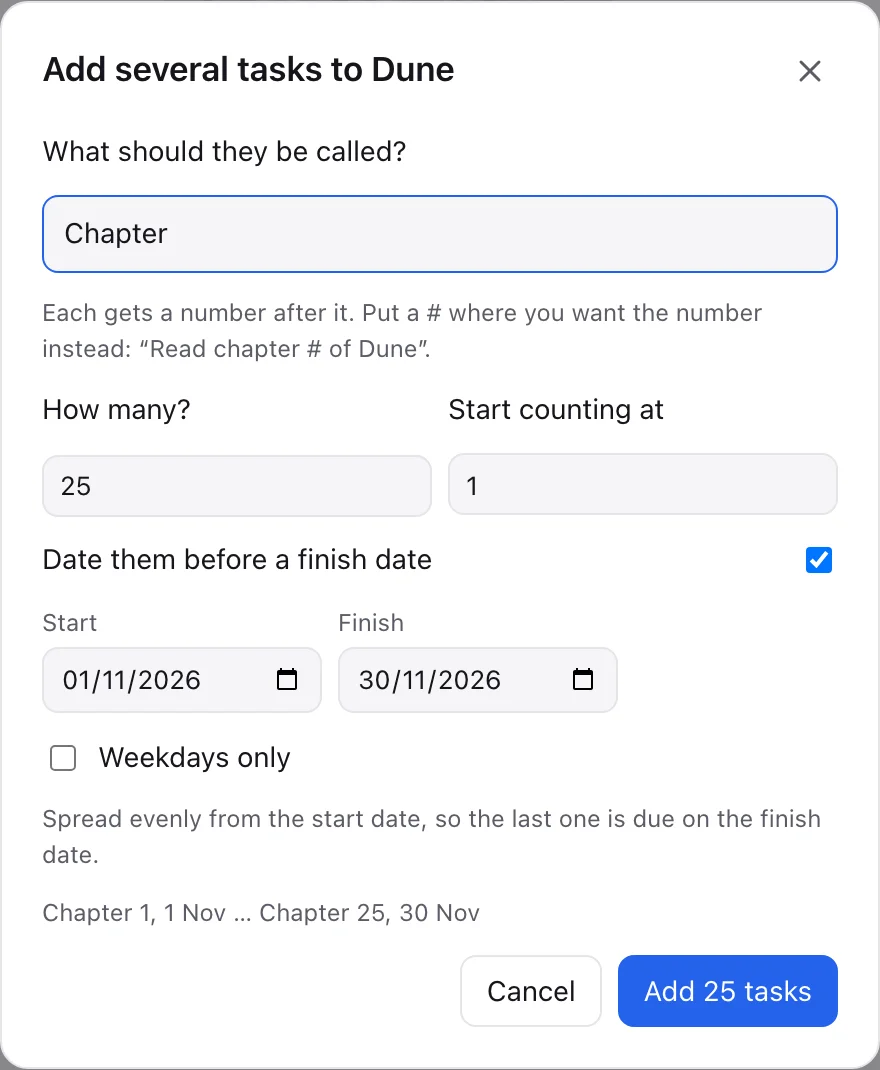
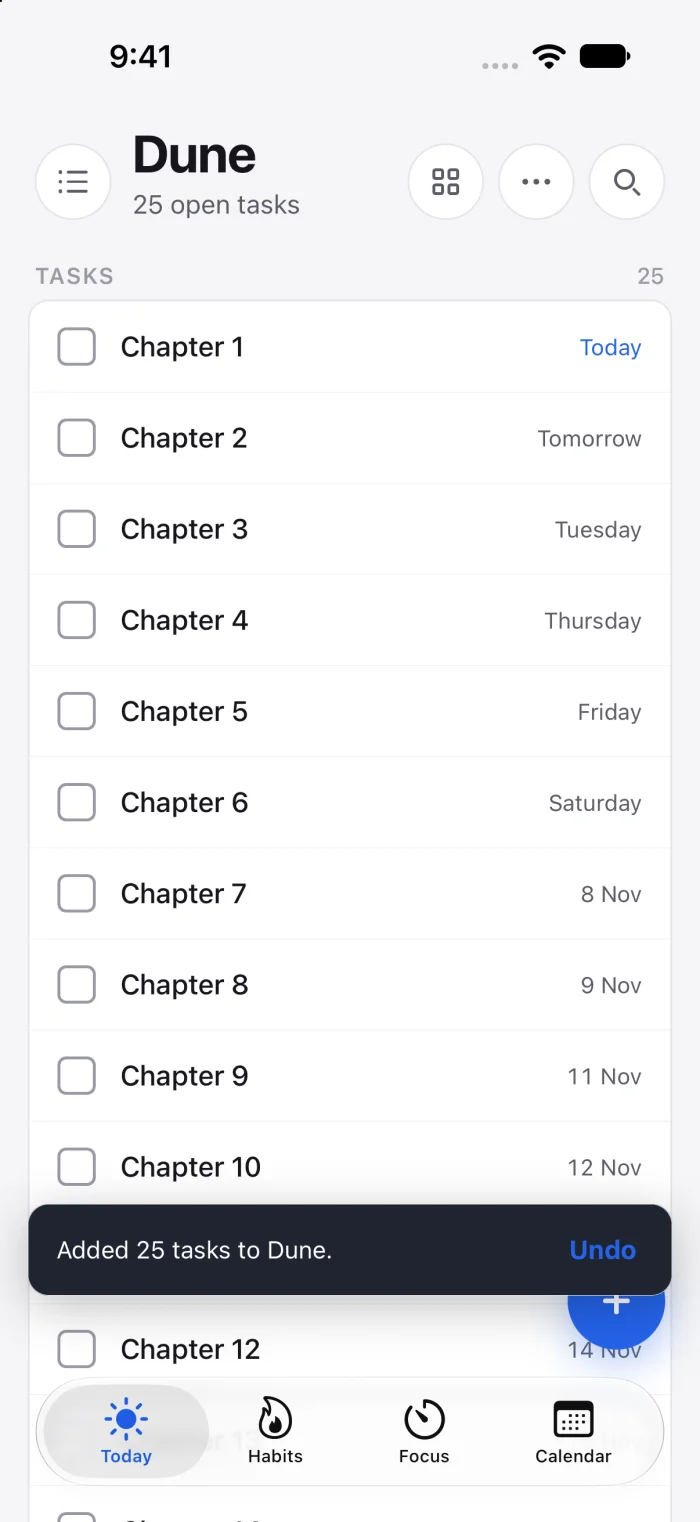
- Open the list's menu. Web and desktop: the ⋯ at the top of the list. Phone: the ⋯ at the top of the list, or long-press the list in the drawer. Choose Add several tasks…
- Say what they're called and how many. "Chapter" and 25 makes Chapter 1 to Chapter 25. Put a # where the number should go to have it somewhere else: "Read chapter # of Dune". Start counting at picks up part-way, if you've already read the first few.
- Date them, if you like. Turn on Date them before a finish date and pick a start and a finish: the tasks are spread evenly between, so the first is due on the start date and the last on the finish date, with several on a day if there are more tasks than days. Weekdays only leaves Saturdays and Sundays free. Leave it off and they have no dates.
- Add them. They go at the end of the list, in order. Changed your mind? Undo on the message that follows takes them all away again.
As subtasks instead. To keep the book as one task, open the task and choose Add several… beside Subtasks. It asks the same questions, without dates (subtasks don't have them), and the task shows how many are ticked off, such as 3 of 25. Undo appears beside the heading straight afterwards on a phone, and on the message on the web.
Sections and the board
Split a list into sections, such as Ideas, To do, Doing and Waiting on, and show it either as rows under each section or as a board with a column for each. Sections are free, and they belong to the list: they sync, and in a shared list everyone sees the same ones.

- Add a section. Web and desktop: Add section in the list's ⋯ menu. Phone: Add section at the foot of the list.
- Switch to the board. The board button in the list's header swaps between rows and a board. The choice belongs to the list, so it is the same on every device.
- Move a task between sections. Web and desktop: drag it to another column or section, or onto a card to put it just before that one. Phone: Move to section… in its long-press menu. On any device, Section in the task's detail does the same without dragging.
- Add straight into a column. Every column has its own Add a task box, and dates in plain English work there as they do everywhere else.
- Rename or delete a section from the ⋯ on its header. Deleting one keeps its tasks in the list, without a section. On the web and desktop you can also fold a section away; that is remembered on each device, not shared.
Tags
Type #tag in the quick-add box or add tags in the task's detail pane. Every tag is a view of its own in the sidebar and the drawer; rename or recolour one from its menu. Renaming a tag renames it on every task.
6. Saved filters
One saved filter on Free; as many as you like on Premium.
A saved filter is a search written down as rules and kept as a list of its own. A task is in the filter for as long as it matches; you never move tasks into one. The rules are yours: there is no guessing and no AI.

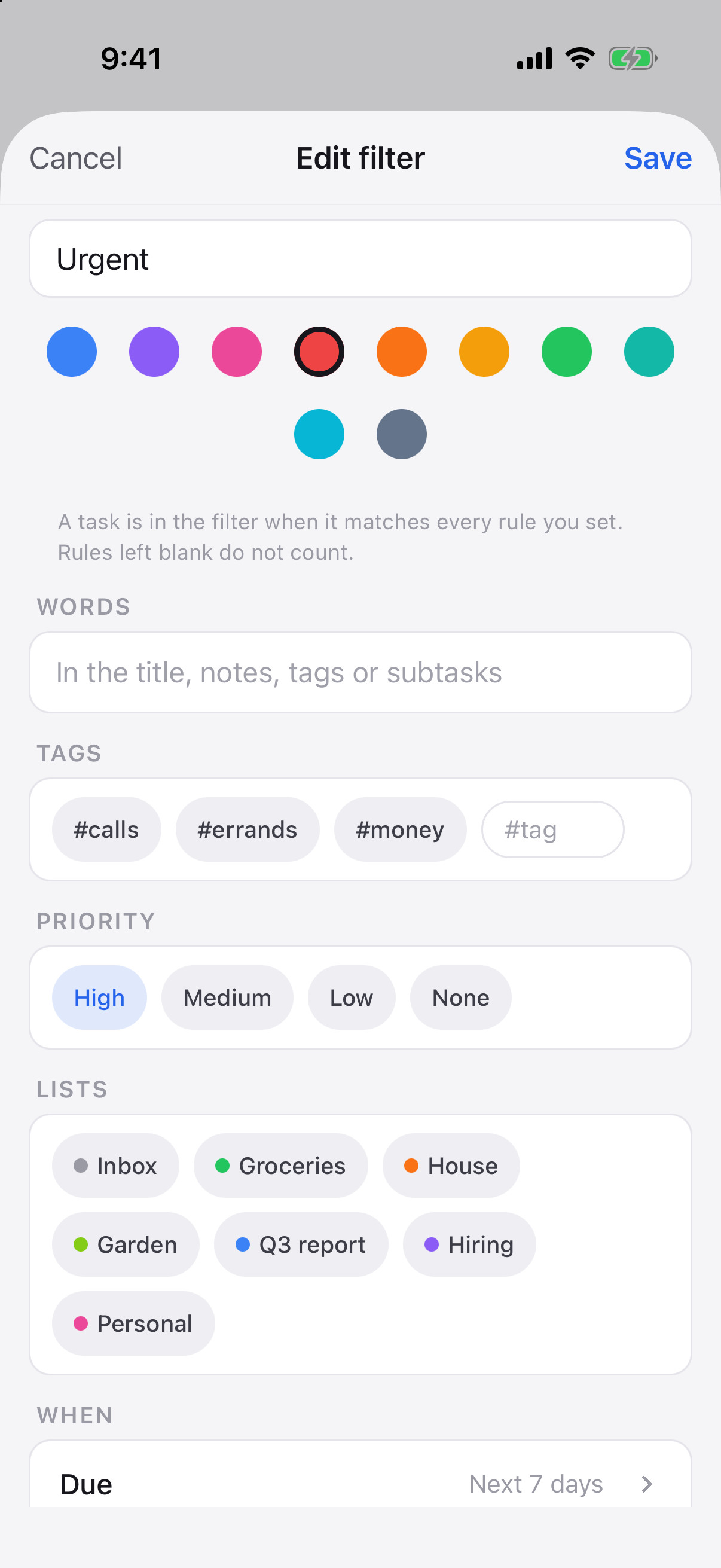
The filter editor on the web (left) and the phone (right). Only the rules you set count.
Making one
- Web and desktop: the + beside Filters in the sidebar. Phone: open the drawer and tap New filter under Filters.
- Give it a name and a colour.
- Set the rules you want. Each one you leave blank is ignored; a task has to match every rule you do set.
- Words — in the title, notes, tags or subtasks, the same match as the search box.
- Tags — pick from your tags or type a new one. With more than one, choose whether a task needs any of them or all of them.
- Priority — high, medium, low, none; pick as many as you like.
- Lists — one or more lists, or Inbox for tasks in no list.
- Due — any date, no date, overdue, today, the next 7 days, the next 30 days, or between two dates you choose.
- Show — open tasks (the usual), completed ones, or both.
- Save. The filter opens, and from then on it is in the sidebar or drawer with a count of what matches.

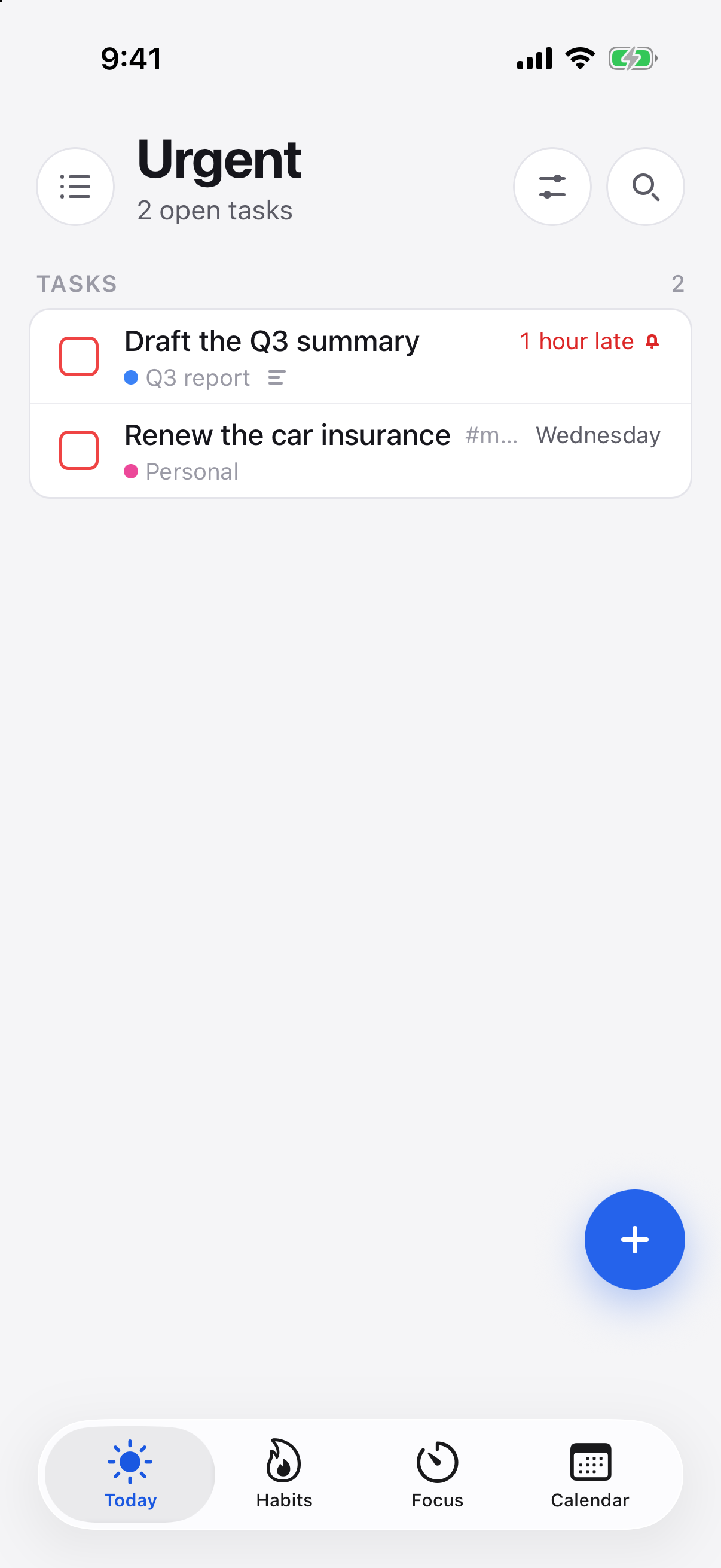
A saved filter is a view like any other, with its rules in the header and a count in the sidebar.
From a search
Searching for something you keep searching for? While the search is open, choose Save as filter (the button beside the search on the web; the filter button in the header on the phone). The words are filled in for you; add any other rules and save.
Some filters people make
- Urgent — priority High, due in the next 7 days.
- Waiting on — tag #waiting, any date.
- This month's errands — lists Home and Errands, due in the next 30 days.
- Done this quarter — show completed, due between the quarter's first and last day.
Edit or delete a filter from its menu (⋯ on the web; long-press on the phone), or with the edit button in its header. Deleting a filter never touches the tasks it listed. Filters follow your account to every device.
7. Your calendar beside your tasks
One calendar on Free, a phone calendar or a subscription; as many as you like on Premium.
Appointments from your calendar can sit in Today with the day's tasks and on the Calendar at their hour. An appointment is not a task: it has no tick box, you cannot edit it here, and it is dismissed rather than completed. Nothing about your calendar is uploaded; the events are read on each device.


An appointment open on the web (left) and the phone’s Calendar settings (right).
On iPhone and Android
- Settings → Calendar → turn on Show my calendar and allow access when the phone asks. The app reads them; it writes only if you turn on My tasks in a calendar, below.
- Switch on the calendars you want, grouped by the account they belong to. A calendar you share with someone through Google or iCloud is under that account, already there if the phone shows it in its own Calendar app.
- Choose where they show: in Today and the day lists, in the Calendar tab, or both.
On the web and desktop, and any calendar by its link
- Find the calendar's private iCal link. Google Calendar: the calendar's settings → Secret address in iCal format. iCloud: share the calendar as a public calendar and copy the link. Outlook: Settings → Shared calendars → Publish.
- Paste it under Settings → Integrations → Calendar subscriptions (on the phone: Settings → Calendar → Subscriptions). The app reads it once to check it is a calendar, then keeps it.

Calendar subscriptions on the web and desktop.
Subscriptions follow your account, so a link added once shows the calendar on every device. The link is stored encrypted with your other settings; the events are fetched fresh on each device and never stored.
Using an event
- Tap it for where and when, its notes, and the calendar it came from. The place is a button: it opens Apple Maps or your maps app on the phone, and Google Maps on the web.
- The × dismisses that occurrence from your lists; tomorrow's occurrence of a repeating event still shows. A dismissal follows your account, so an appointment dismissed on the phone is gone from the laptop too. If you change your mind, Settings → Calendar on the phone, or the calendar subscriptions block under Settings → Integrations on the web, shows dismissed events again.
- On the phone, Settings → Notifications → Count calendar events adds today's appointments to the number on the app icon when the badge counts Today.
- Settings → Calendar → Reminders lists each calendar with its own lead time: off, when it starts, or from 5 minutes to a day before. A subscribed calendar's choice follows your account to every device; this phone's own calendars start off, since its Calendar app may remind you already, and you can turn them on one by one. Calendars left alone follow Before each calendar event. The web and desktop apps also ring before events from the calendars your phones share.
A phone's calendars on your other devices
iCloud has no private link to subscribe to, so the phone can share instead: Settings → Calendar → Share with my other devices. The calendars switched on above then show on the web and the desktop under the phone's name, encrypted end to end like your tasks; we don't read them. Share a calendar from one phone only.
Your tasks in your calendar
The other direction, on the phone: Settings → Calendar → Show my tasks in a calendar. Pick a calendar and your dated tasks appear in it as events; work sessions too, if you like. Pick one from your Google or iCloud account and they show up in Google Calendar or Apple Calendar everywhere that account does, kept in step as tasks change and gone when they are done. The phone writes the calendar itself: nothing passes through our servers, which is also why you should pick one phone for it.
- Titles is on by default; off, every event reads “Tickbase”, blocking the time and keeping the task here.
- Which lists keeps work out of a personal calendar, or the other way round.
- A new “Tickbase” calendar is the quickest choice on iPhone. On Android it lives on the phone only, so pick one of your Google calendars to see tasks in Google Calendar.
8. Sharing a list
Sharing a list needs Premium. Joining one does not: four free members per list, Premium members unlimited.
Any list can be shared with a partner, family or teammates. Everything in it stays encrypted end to end: the list gets a key of its own, handed to each member directly, and our servers never see what is in it. Only the person sharing needs Premium; the people invited join on whatever plan they have, and a list shared with them never counts towards their limits.


A shared list (left) and its sharing settings (right).
- Open the list's menu and choose Share.
- Invite by e-mail. Someone without an account gets an e-mail saying where to sign in; the list appears for them once they do.
- Choose whether each person can edit or only view. You can change it, or remove someone, from the same sheet later.
- Assign a task to someone in the list from its detail pane; they are told when it lands. Assigned to me in the list's header narrows it to yours.
- Comment under any task. A count on the row says how many there are.
- Activity (the button in the list's header) is everything that happened in the list, newest first. A dot on a shared list in the sidebar means someone else changed something since you last looked.
9. Reminders and the app icon badge
One reminder per task on Free; as many as you like on Premium. The badge and the daily summary are free.


Reminders on a task (web, left) and the phone’s Notifications settings (right).
- A task with a due time reminds you at that time. Add earlier reminders in the task's detail pane; Settings → Notifications sets what a new task starts with.
- Reminders on this device (Settings → Notifications) quiets one device while the others carry on. Reminders everywhere silences every device at once.
- Keep reminding rings again after a task's last reminder until you act on it: Done, Snooze or Stop reminding on the notification, or finishing the task. Choose how often, from every 30 seconds to every hour, and how many more times, up to 30. Turn it on for every task in Settings → Notifications, or for one task with Keep reminding beside its reminders.
- Ring as an alarm (iPhone and Android): a reminder that keeps reminding rings like an alarm clock instead, full screen and through silent mode and a Focus, until you stop or snooze it. On Android it also has Done. The phone asks once to allow alarms; until it may, these reminders come as notifications. Earlier reminders, and your computers, still get notifications.
- Daily summary sends one notification a day saying how the day looks, including any deadline that falls today ("Deadline today: Renew passport"); nothing on a quiet day.
- App icon badge: choose what it counts — Today, overdue, Inbox or every open task — so the number on the icon is what you would see if you opened the app. Today includes habits you have not done yet, and can include today's calendar events.
Keeping your phone up to date
Free on every plan. It needs your phone's permission to work in the background.
We don't read your tasks: they are encrypted on your device before they reach us, and our server only ever holds them encrypted. That is the point, and it has one consequence worth knowing. The server has nothing to build a reminder or a morning brief from, so it cannot send them itself. Instead, when something changes on another device, it sends your phone a silent, empty nudge that says only "something changed". Your phone wakes for a few seconds, syncs, decrypts, and sets its own reminders, badge and brief. Nothing about your tasks travels in the nudge, and you never see it.
So a reminder you set on your laptop rings on your phone only if the phone is allowed to wake in the background. If it is not, nothing is lost: everything catches up the moment you open Tickbase, but a reminder set elsewhere will not ring until then.
On iPhone and iPad:
- Background App Refresh: Settings → General → Background App Refresh must be on, and switched on for Tickbase in the list below it. On recent iOS versions you will also find it under Settings → Apps → Tickbase. At the top of that page, choose Wi-Fi & Mobile Data: with Wi-Fi only, iOS lets Tickbase update only while you are on Wi-Fi, so a reminder you set on your laptop while you are out waits until you are back on Wi-Fi or open the app. Each update fetches only what changed, a tiny amount of data.
- Low Power Mode pauses background refresh for every app while it is on. Tickbase catches up when you open it or when Low Power Mode ends.
- Notifications: allow them when Tickbase asks, or later under Settings → Notifications → Tickbase. The nudge itself is silent, but the reminders it sets up are notifications.
On Android:
- Allow notifications when Tickbase asks (Android 13 and later), or under Settings → Apps → Tickbase → Notifications.
- Allow Alarms & reminders (Android 12 and later): Settings → Apps → Tickbase → Alarms & reminders, or tap Allow when Tickbase asks. Without it, Android may deliver every reminder several minutes late, and bunch them together. Android 14 leaves it off until you allow it.
- Let it run in the background: Settings → Apps → Tickbase → App battery usage (called Battery on some phones), and choose Unrestricted or turn on Allow background usage.
- Turn off "Pause app activity if unused" for Tickbase, on the same app settings page, so it is not put to sleep when you have not opened it for a while.
- Don't Force stop it. Swiping Tickbase away from your recent apps is fine; Force stop in its app settings turns off background wake-ups until you open it again.
- Phone makers add their own battery savers, and these are the usual reason a phone stops waking. Samsung: Settings → Battery → Background usage limits, and make sure Tickbase is not in Sleeping apps or Deep sleeping apps (add it to Never sleeping apps). Xiaomi, Redmi and POCO: turn on Autostart for Tickbase and set its battery saver to No restrictions. OnePlus, OPPO and realme: allow background activity in Tickbase's battery settings. Huawei and Honor: under App launch, set Tickbase to Manage manually with auto-launch and running in the background allowed. The exact names vary with the phone and its Android version; dontkillmyapp.com keeps step-by-step instructions for most makers.
What to expect: after you finish making changes on another device, your phone usually updates within a minute or two. We wait until you have stopped editing for a minute, so a burst of changes wakes it once rather than twenty times. The phone has the final say on timing, and may hold background work back when its battery is low. Once a day, just after midnight, Tickbase also wakes your phone whether or not anything changed, so the badge, your morning brief and the week's reminders are counted from the new day. Opening Tickbase always syncs straight away.
Away for a few days
Free on every plan.


Today while you are away, on the web (left) and the phone (right).
Going on holiday, or just need a week off? Tell Tickbase you are away and it goes quiet on purpose, on every device: no reminders, no morning summary, and no review asking to be done until you are back.
- Setting it: Settings → Notifications → Away, on every device. Choose the first and last day and tap Go quiet. It can start today or later; a booked one is shown until it begins.
- Moving your dates on (on unless you turn it off): open tasks due while you are away, and deadlines in those days, move on by the length of the break, so a task due on the second day away is due on the second day back. It is not counted as postponing them. Turn it off and they wait for you as overdue instead.
- Afterwards the review covering those days begins You were away … rather than scoring them as a bad week, habits are not counted as missed on those days, and streaks carry over them.
- Back early? Tap I'm back on Today, or in the same place in Settings. Reminders come back at once; dates already moved stay where they are.
10. The weekly and monthly review
The review you are offered is always free. Premium scrolls back through every earlier week and month.


The weekly review, on the web (left) and the phone (right).
Once a week, at a time you choose in Settings → Review, Tickbase offers a guided look back at the week: what you finished, what slipped, habits, focus time and your resolutions, then a tidy-up of what is still open. The monthly review is the same over a month, and is off until you turn it on. Both are offered only from the first scheduled time after you started using the app, and dismissing one on any device dismisses it everywhere. Opening a review and going back counts as having done it; on the phone, each tidy-up section folds from its header.
Deleting a task deletes its history too. A deleted task leaves every review, export and statistic, including weeks already gone, and the year in review. Undo is offered for a moment after deleting; after that the task is gone from every device. If you want something to stay in the record, complete it, or leave it be: an open task costs nothing.
Each task you completed is listed with the day it was finished and, when you had typed them in, the time spent on it (focus sessions and work sessions logged as worked), your estimate and its deadline. Progress made lists every target and resolution that moved that week — progress you added, ticks on the task, a weekly milestone completed — and where it stands now.
Deadlines coming up lists the tasks whose deadline falls in the week ahead (the month ahead, in the monthly review), and any open task whose deadline has already gone, soonest first, each with the day it is planned for, no date yet, or planned after it. It's there for everyone: it only tells you what you've already set.
Exporting a review
Exporting is part of Premium. The review being offered is free to read; keeping a file of every week is what Premium's review history is for.

The Export menu on the web. On the phone, the Export button sits beside the Week/Month switch.
Any weekly or monthly review, including earlier ones, can be saved as a file: a Markdown file for a notes app or a journal, or a PDF with the Tickbase mark top-left and your name top-right, the headline, the numbers, habits, resolutions, progress made, every task you completed and the tidy-up lists. Both come from the same review, so they always say the same things.
- On the phone: open the review, tap Export beside the Week/Month switch and choose PDF or Markdown file. The share sheet opens, so you choose where it goes: Files, Mail, a notes app, AirDrop.
- On the web: the download icon in the review's header offers the same two. Markdown downloads straight away. PDF opens your browser's print dialog, where Save as PDF is the destination to pick.
- On the desktop: Markdown asks where to save. PDF opens the page in your browser, because the app's own window has no print dialog; choose Print there, then Save as PDF.
Choosing what it includes


Settings → Review → Exported review, on the web (left) and the phone (right). Everything is on until you turn it off.
Settings → Review → Exported review decides what goes into the file, and the choice follows your account to every device. Everything starts switched on; turn off what a manager or a client need not see. A section with nothing in it is left out of the file anyway.
- Your name, top right — your account's name in the corner, for a report you hand to someone else. Off, and nothing personal is printed.
- XP earned — the one number that means nothing outside Tickbase. Off, and the row of numbers closes up to three.
- Each section — habits, resolutions, targets, progress made, completed, keeps slipping, overdue, unscheduled, not touched in 30 days and coming up this week, each with its own switch.
The same switches shape the monthly review's export. The year in review is separate: it is a celebration, and it always shows everything.
Files are named after the period they cover, such as tickbase-week-review-2026-09-14-to-2026-09-20.pdf. A review you are still tidying up exports as it stands right now; export again after finishing and the file reflects it.
Free accounts see the latest review; Premium keeps every earlier one to scroll back through.
Your week as a card
Free on every plan.

Any week or month in the review can be turned into a picture to share or keep: the tasks you finished, the habits you kept, your hours of focus, your best run of days and how your two furthest-along resolutions are going. It is drawn on your device from the review it already has, so nothing is sent anywhere to make it, and it shows numbers and your resolutions only, never the names of your tasks.
- On the phone: open the review and tap Card beside Export. The share sheet offers Save Image, Messages and the rest.
- On the web and desktop: the picture icon in the review's header shows the card, with Save picture, and Share where your browser has a share sheet.
11. Signing in, sync and encryption
Sync and encryption are free. Premium also syncs your appearance.

Settings → Encryption on the web and desktop.
- Tickbase works without an account. Sign in (Google, Apple, or a code sent to your e-mail; there are no passwords) to back up and sync.
- Sync is free. Tickbase syncs when you open the app or make a change, and phones are woken in the background when something changes elsewhere (see Keeping your phone up to date).
- Everything is encrypted on your device before it leaves. The default keeps a recovery route through your sign-in; Strict mode (Settings → Encryption) adds a passphrase only you know, which we cannot reset.
12. Bringing your lists over, and taking them out
Free on every plan.


Import and export on the web (left) and the phone (right).
- Import from TickTick, Todoist, Things, Apple Reminders, Microsoft To Do and Any.do: Settings → Data on the web and desktop; Settings → Integrations → Import from another app on the phone. Lists, tags, dates, repeats, subtasks, notes and completed history come across where the export has them; Apple Reminders on iPhone imports straight from the phone.
- Apple Reminders' subtasks arrive as tasks of their own: Apple doesn't let other apps see which reminder sits under which. To put them back, select them (on the phone, press and hold one and tap Select…), choose Subtasks in the bar that appears, and pick the task they belong under.
- Importing again is safe. Tasks already in Tickbase (the same title in a list of the same name) are left out, so a newer backup brings in only what's new. TickTick's backup has no countdowns or habits in it, so add those by hand.
- Two dates stay two dates. Things and Todoist keep a deadline apart from the day you planned to do something, and so do we — Things' When and Todoist's date become the due date, their deadline becomes the deadline. A to-do with a deadline and no day planned arrives that way, with the hourglass and no due date, rather than being given a day it never had.
- Export from the same place, any time, on every platform. JSON is everything and the format that comes back in: tasks, lists, tags, habits and every tick of them, countdowns, resolutions, focus sessions and your settings. CSV is a spreadsheet of your tasks, a column per field, for reading somewhere else. Calendar (.ics), from Settings → Integrations, is every task with a day — the day you planned it for, or its deadline when that is the only date it has — plus your countdowns.
Coming from Any.do
Any.do has no single export, so moving over takes two goes: one for what is still to do, and one for what you have finished, if you want that history too.
- What is still to do: in the Any.do app on your phone, open a list, tap ⋯ at the top right, then the export icon, and choose Copy. In Tickbase, open Import from another app, choose Any.do and paste. Each line becomes a task, indented lines become its subtasks, and the list keeps its name. Do this once for each list.
- What you have finished: in Any.do on the web, click your profile picture to open Settings, choose Archived Tasks and click Send. Any.do e-mails you a zip file; unzip it and choose the CSV inside in Tickbase's Any.do import. Those tasks arrive ticked off, with the day they were done where the file has it.
- Boards (Any.do's Family and Workspace plans): on the web, open the board, choose ⋯ → Print and Export, pick CSV, and import that file the same way.
- Check the preview before you import: it shows how many tasks, lists and tags Tickbase found, and anything it couldn't read.
13. Themes, accents and the app icon
Light and dark are free. Premium unlocks every accent, the matching app icons, and appearance that follows you across devices. More looks are on the way.

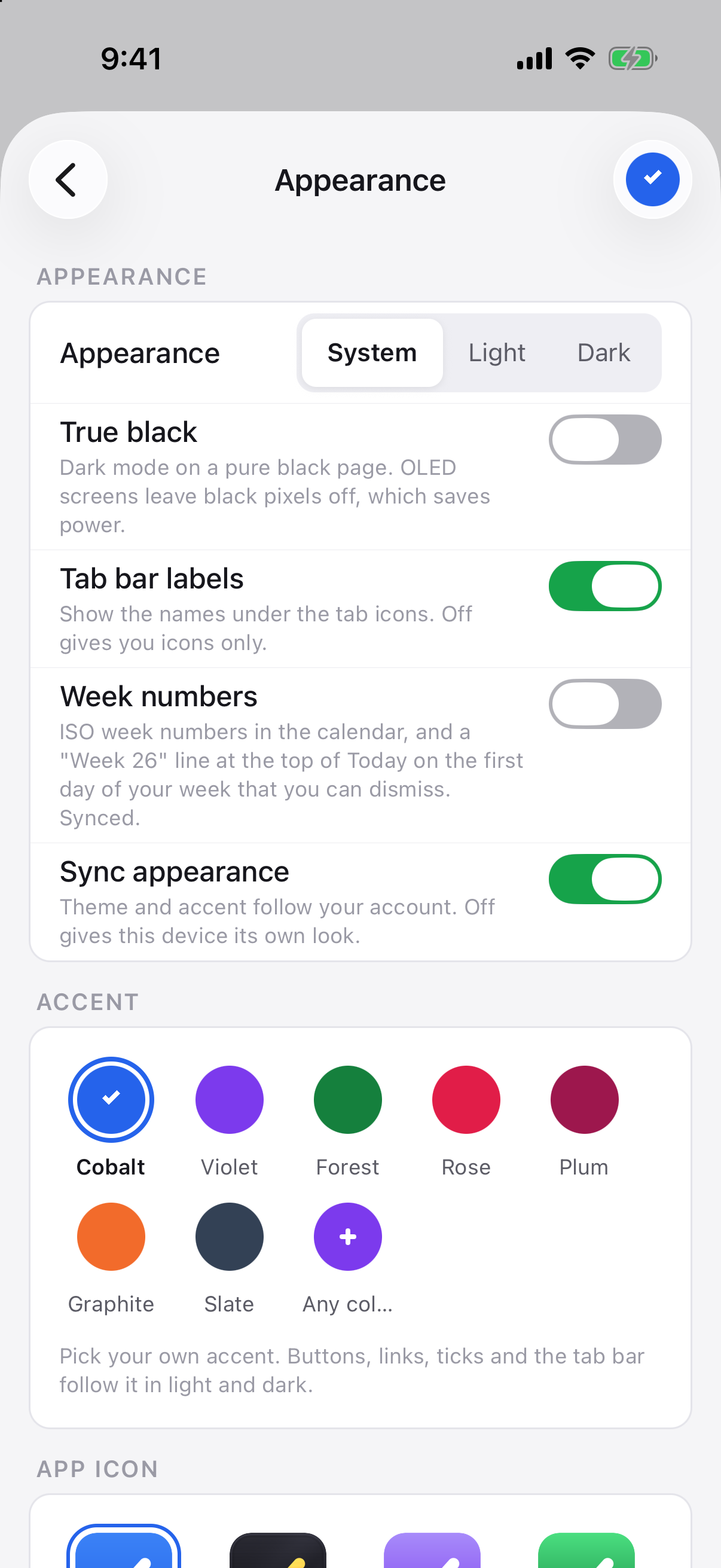
Theme settings on the web (left) and the phone (right).
- Light or dark: Settings → Theme on the web and desktop, Settings → Appearance on the phone. System follows your device; pick Light or Dark to set it yourself.
- Accent: the colour of buttons, links and the selected row. Cobalt is free; Premium has the full set, and Any colour opens a picker so the accent can be exactly the colour you want, on every platform.
- True black: a switch under the appearance choice puts dark mode on a pure black page. OLED screens leave black pixels off, so it saves a little power and some people prefer the look. It travels with your theme and accent when Sync appearance is on.
- App icon: one icon for every accent, and a gold-on-black Founder icon for Founders. On the phone it is your home-screen icon; on the desktop it is the Dock or taskbar icon; on the web it is the mark in the app. Choosing one is the only thing that ever changes it.
- Sync appearance (Premium) mirrors your theme and accent to every device you sign in on. Turn it off on a device you want to keep different.
- Tick boxes come in a few shapes, and the phone can play a short sound when you tick something off.
More themes and icons will be added over time; anything new lands in the same place.
14. Habits
Three habits on Free; unlimited on Premium.

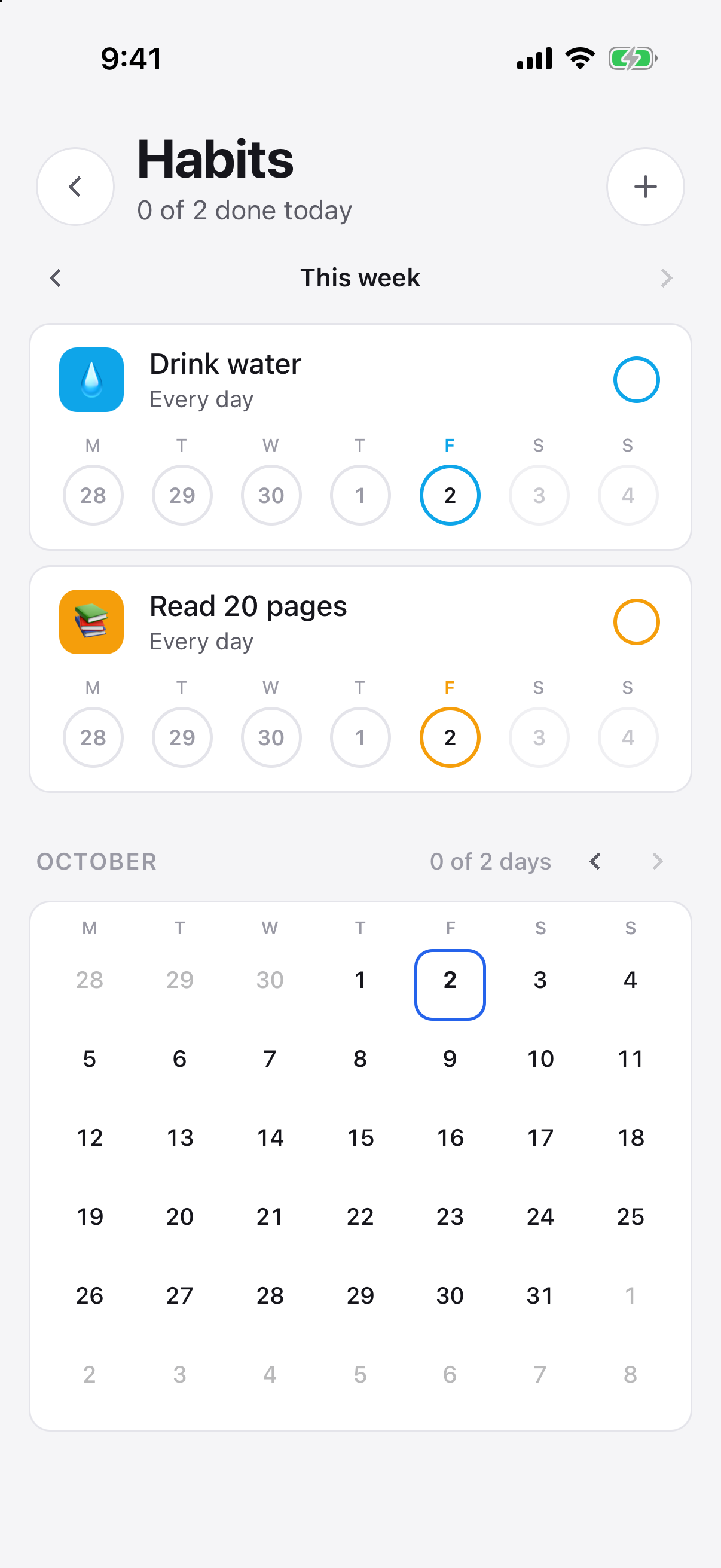
Habits on the web (left) and the phone (right).
A habit is something you do again and again rather than finish. Habits due today sit at the bottom of Today; tick one there or on the Habits page.
- Make one: the Habits page (the flame in the rail on the web; the Habits tab on the phone) → +. Pick a preset or write your own, give it an icon and a colour, and choose how often: every day, certain weekdays, or a number of times a week. A habit can want more than one tick a day, for water or pages.
- Reminders: a time of day on the habit rings on the days it is due.
- Streaks and the heatmap: the habit's page shows the current and best streak and the last twelve weeks. A missed day is simply a day you did not do it; nothing is carried forward.
- Habits count in the weekly review and towards achievements.
15. Countdowns
Three countdowns on Free; unlimited on Premium.

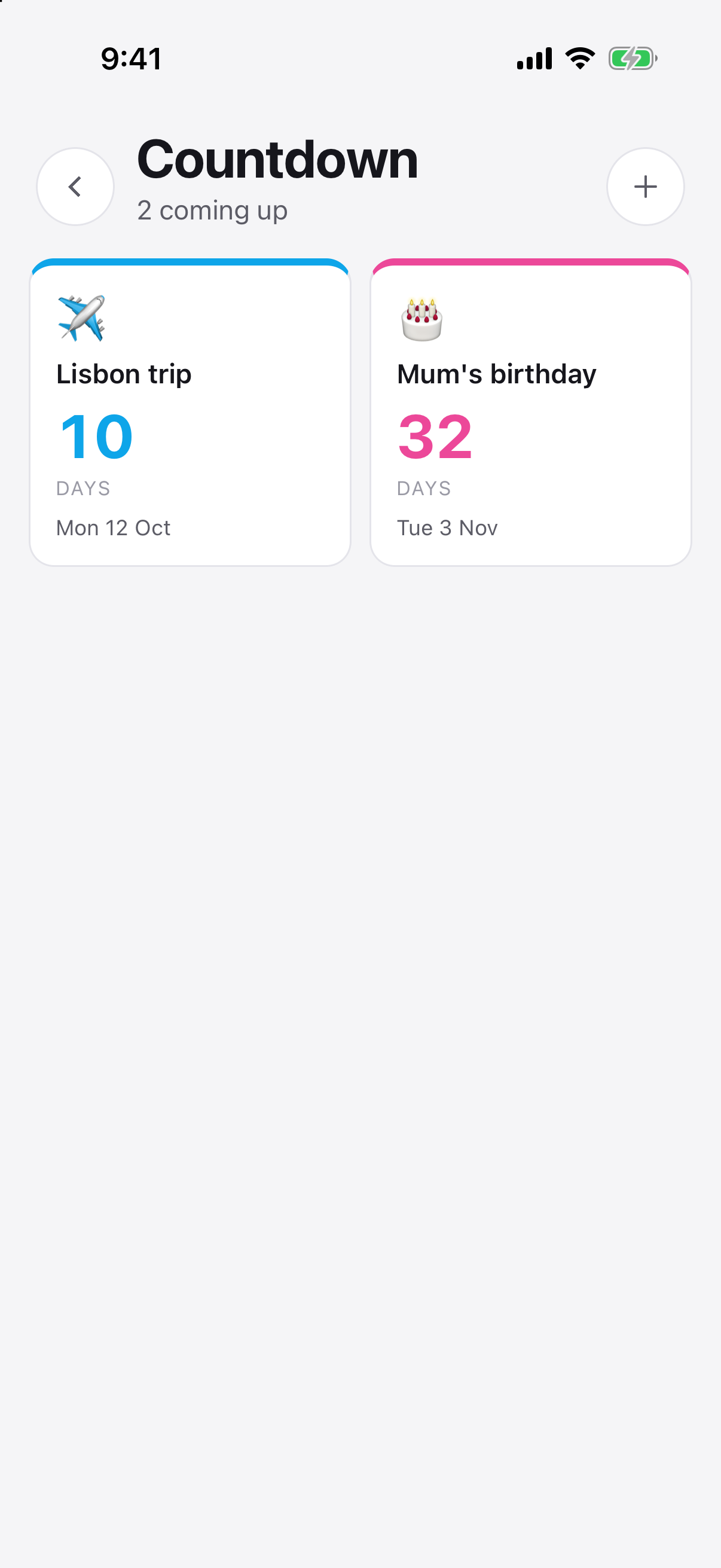
Countdowns on the web (left) and the phone (right).
Birthdays, anniversaries, exams, launches: a date with days until, or days since it passed. From the Countdown view (the hourglass), add one with a title, a date, an icon and a colour. A yearly countdown rolls forward on its own after the day. Countdowns falling in the next few days show above Today as pills, and never count as tasks.
Putting them in order
New in Tickbase 1.4.
Countdowns start soonest first. The Order menu at the top of the page also offers Newest first and Your order, and the choice follows your account to every device.
- On the web and desktop: drag a countdown onto another to put it in front of that one.
- On a phone: touch and hold a countdown until it lifts, then drag it where you want it. Hold it and let go without moving for Move earlier and Move later.
Moving one switches the page to Your order, starting from the order you were looking at. A countdown widget always keeps the countdown you chose for it, whatever the order.
A photo behind a countdown

Open a countdown and choose Add a photo. The picture is shrunk to a sensible size and encrypted on your device before it is uploaded, so it is exactly as private as a note, strict encryption included. Change photo and Remove are in the same place, and a photo you remove is deleted from our storage. Photos are kept with your account, so you need to be signed in to add one; on another device they appear once it has synced.
16. Resolutions and targets
Three resolutions a year on Free; unlimited on Premium, which also keeps earlier years to look back on. Targets are free.

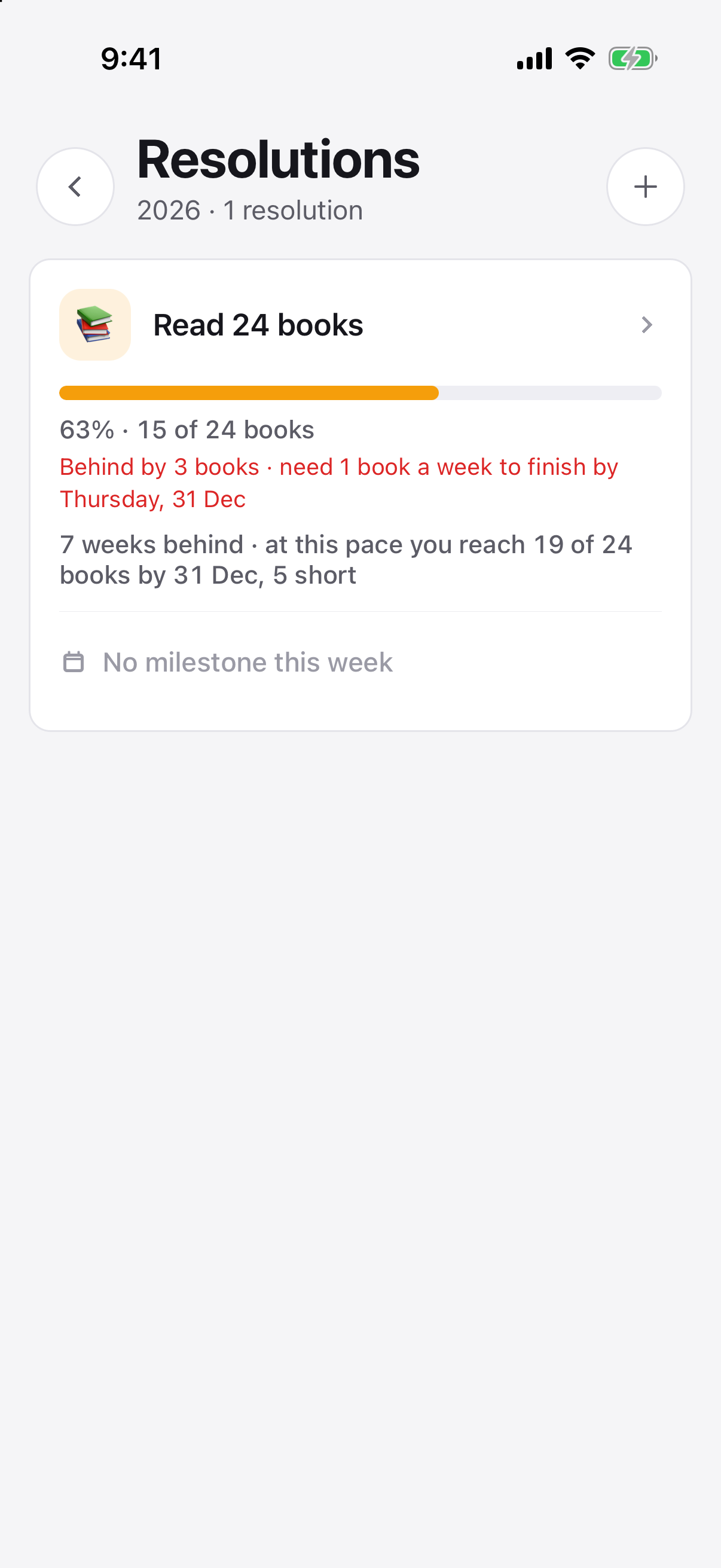
A resolution on the web (left) and the phone (right), with the pace line in red when you are behind.
- A resolution is a big goal for the year — 1,200 chapters, 500 km, 24 books — with a number, a start and an end. Tickbase splits it into weekly milestones that appear in your list by themselves on the day you choose ("Read One Piece · up to chapter 950"). Tick them off and the resolution's page tells you whether you are ahead or behind pace. Make one from the Resolutions view (the target icon).
- Where your pace lands. Under each resolution, the gap to the straight line in days or weeks, and where your pace so far takes you: 7 weeks ahead · at this pace you finish on 11 Nov, or 8 weeks behind · at this pace you reach 398 of 500 km by 31 Dec, 102 short. Counting, not guessing: the rate is everything done since the start date over the days gone. The same line is under each resolution in the weekly and monthly review, and in an exported review.
- All week in Today. Each running resolution has a card at the top of Today every day, with this week's milestone and your pace, so one due on Sunday is not out of mind until then. It isn't counted as a task; the milestone still comes up as one on its day. Turn the cards off in Settings → General, or for one resolution with Show all week in Today in its settings.
- Planning a year. Step between years with the arrows on the Resolutions page; a new resolution goes in the year on screen, so next year's can be set in December. An empty year offers starting points ("Read 24 books", "Run 500 km") that fill in the whole resolution, and last year's unfinished ones with Go again. Through December and January, Today asks you to plan the new year until it has a resolution, and the Year in Review ends with the same question. New in Tickbase 1.4.
- Getting back on track. When a resolution slips (a milestone missed, or two weeks behind), its card offers Get back on track: bigger milestones to catch up by the end date, a lower target with the same milestones, or more time. Missed milestones are cleared from your tasks instead of piling up as overdue; tick any you did first. Nothing you ticked off is touched. New in Tickbase 1.4.
- On the first of each month at 9am, one notification gathers every running resolution's line, so January's resolution still matters in June. Turn it off with Resolutions on the 1st in Settings → Notifications.
- A target is a number on any single task: 40,000 words, 100 km. Set it in the task's detail pane. Add progress as you go and a bar fills under the task; with a due date, the pane says whether you are on pace. Ticking a task with a target adds progress by an amount you choose, and the tick that reaches the target completes the task.
17. The focus timer
Free, with today's sessions kept. Premium keeps the full history.

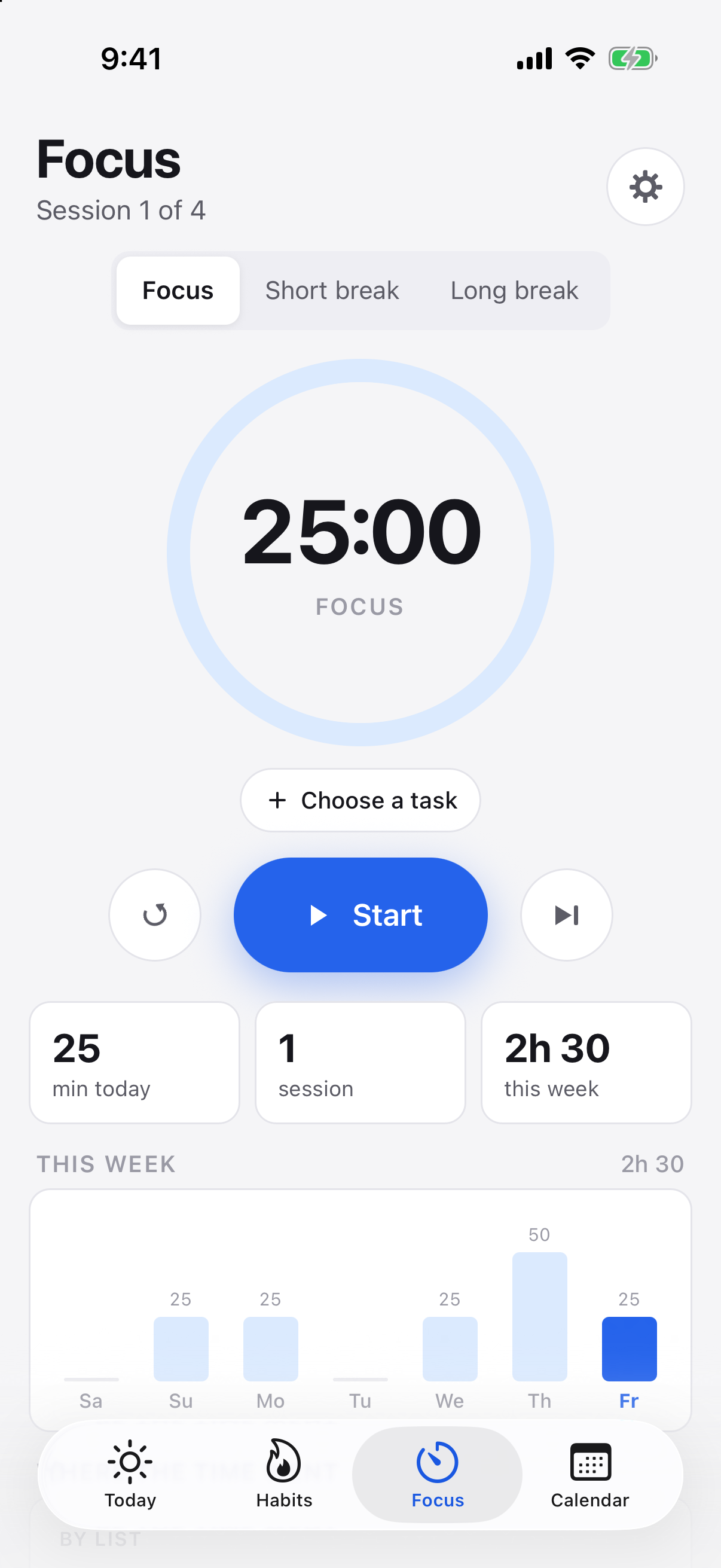
The focus timer on the web (left) and the phone (right).
- Start a Pomodoro from the Focus page (the timer icon; the Focus tab on the phone), or from a task's menu so the time is logged against it. Intervals and breaks are yours to set.
- Noise: white, pink or brown noise while an interval runs.
- Strict mode: once an interval starts it cannot be paused or abandoned.
- On the lock screen: on iPhone, from Tickbase 1.4, the time left counts down on the lock screen and in the Dynamic Island while the timer runs, with Pause and End (none in strict mode). Touch and hold the Dynamic Island to see them. It names the task you're working on unless its list is locked. To turn it off, go to the iPhone's Settings → Tickbase → Live Activities.
- The page shows where the time went by task, list and tag, by day and by week. Sessions count in the weekly review and towards achievements.
18. Statistics, the matrix, achievements and the year in review
Statistics: the last 7 days on Free, any range on Premium. The matrix is Premium. The current year's review is free; earlier years are Premium. Achievements are free.

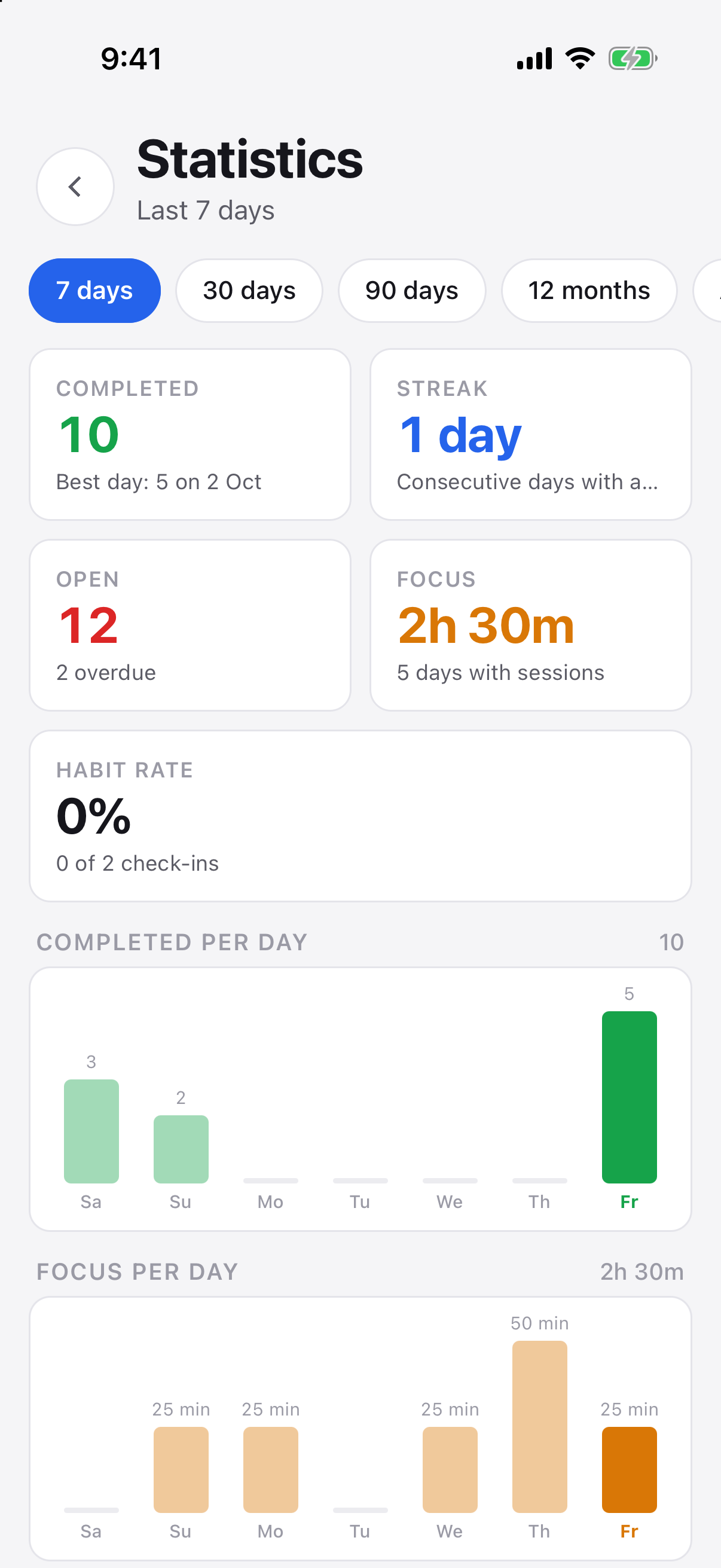
Statistics on the web (left) and the phone (right).
- Statistics (the bar chart): completions per day, streaks, and how the week compares.
- The matrix (the grid): every open task in four quadrants by urgency and importance. Drag a task between quadrants to change its priority and date.

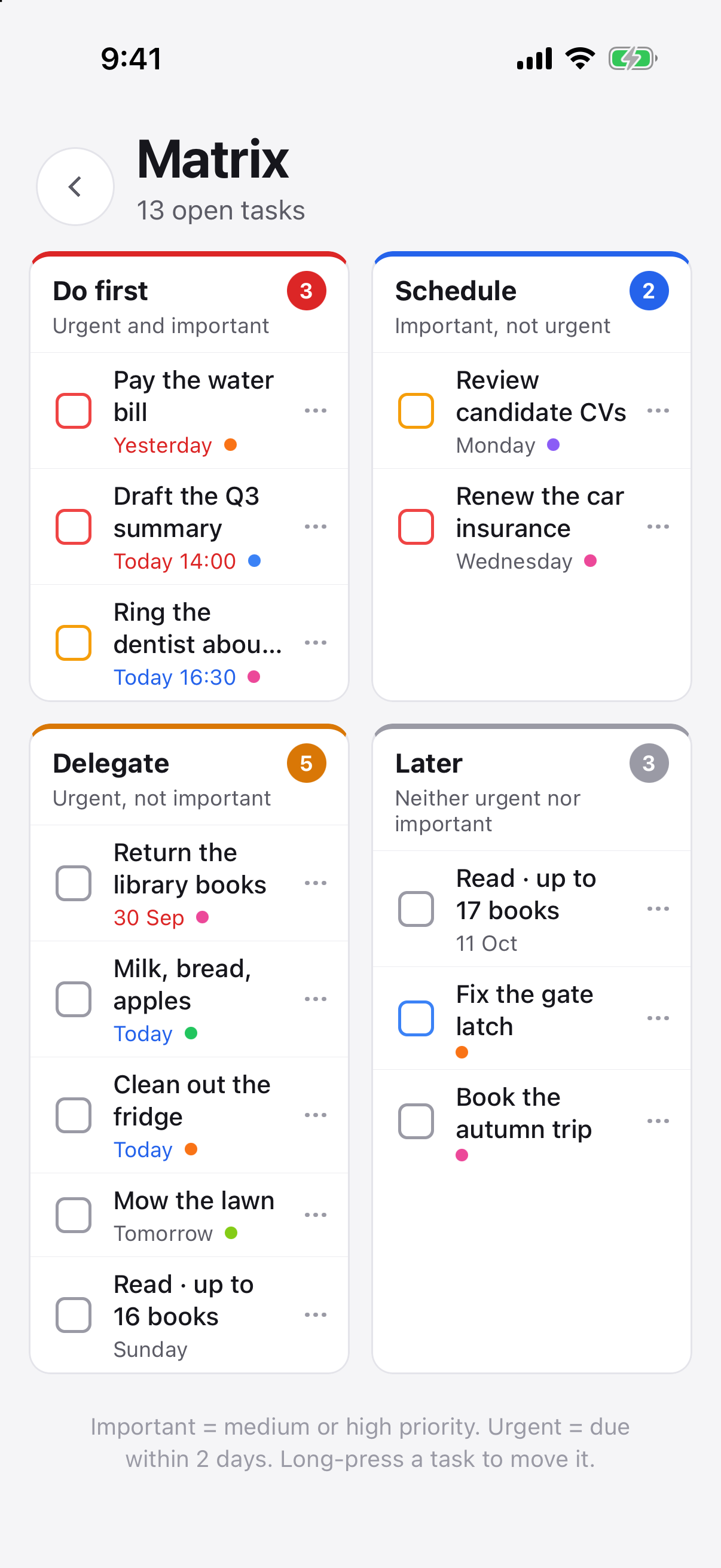
The matrix on the web (left) and the phone (right).

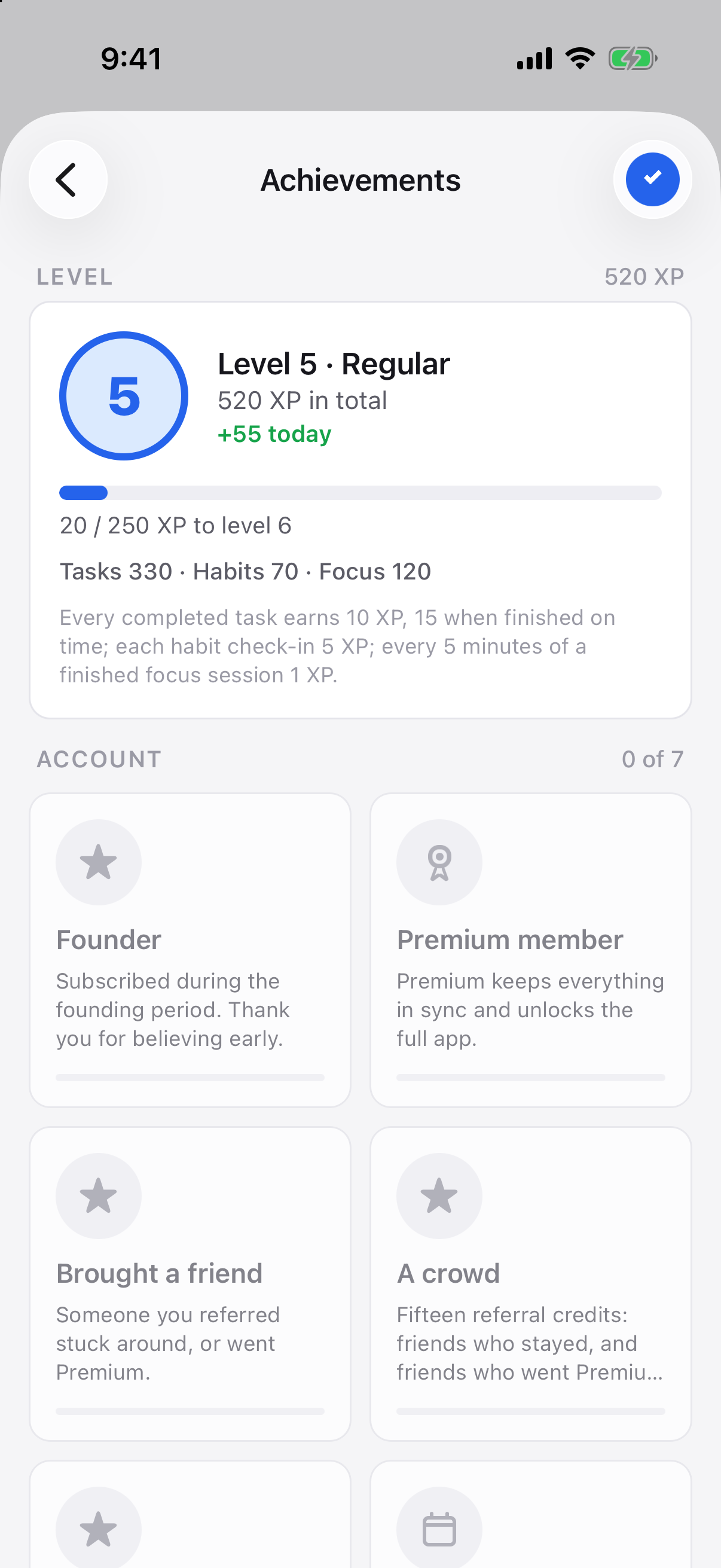
Achievements on the web (left) and the phone (right).
- Achievements (Settings → Achievements): badges for streaks, completed tasks, habits, focus hours, resolutions set and finished, your bucket list, turning on Strict mode and importing, plus a level that grows with everything you finish. A finished resolution earns 150 XP and something ticked off your bucket list 100 XP, on top of their steps. Premium adds a "Premium since" badge; subscribing during the founding period adds a permanent Founder badge.
- Year in review appears in the rail and the drawer from 1 December to 31 January: how much you finished, your busiest month, your power day, your longest streak, the task you repeated most, how your resolutions ended, a congratulation for each thing you ticked off your bucket list (with the day and the words you kept with it) and the level you reached. Computed on your device. Premium can export the year as a PDF or a Markdown file the same way as a weekly review, from the download icon on the web and the Export pill on the phone; it always includes everything, with only the name switch applying.
19. Referrals, and icons you earn
Free on every plan. Earned icons are kept whatever your plan.
Every account has a referral code and a link, under Settings → Account → Refer a friend. Share it. A friend who signs up with it gets a 28-day Premium trial instead of the usual 14. You earn one credit when they are still using Tickbase a week later, and five credits when they go Premium. Credits unlock app icons that cannot be bought: Bronze at 3, Silver at 15, Platinum at 40. Two more mark time rather than referrals: Sapphire after a year with Tickbase and Emerald after three. Each has a matching achievement. The full rules are on the referrals page.
- Got a code from a friend? Enter it in the same place within 30 days of making your account, or open their link in the web app before you sign in and it is applied for you. An account names one referrer, once, and the longer trial starts from the day you signed up.
- What "still using it" means: a week after signing up, the account is opened and has at least ten tasks in it. That is all; there is nothing to do on purpose.
- Earned icons show in the icon picker with a star and what they take. Once earned they stay: a lapsed subscription never takes one back.
20. Summary reports
Premium. Web and desktop.

A summary report on the web and desktop.
The Summary view (the document icon) writes up any period — a day, a week, a month, or dates you pick — as Markdown: what you completed, by list and by tag, habits kept, focus time. Copy it into a journal, an e-mail or a stand-up note, or save it as a file.
21. Work sessions: one task, several calendar blocks
Part of Premium, with the week and day views and durations.
Some tasks take more than one sitting. Plan the 60-clip content list holds the notes, the subtasks and the files, and you work on it for ninety minutes on Tuesday, an hour on Thursday and another on Saturday. Before, that meant a choice between rescheduling the task each time, which loses the record of when you worked, and cutting it into "part 1, part 2" tasks, which duplicates everything. A work session is a block on the calendar that belongs to the task: add as many as it takes, each one opens the same task, and the task stays open until it is done.
- Adding one: open the task and use Work sessions — under the subtasks on the web and desktop, the Work sessions chip on the phone. Pick the day, the start time and the length. Up to twenty per task.
- On the calendar: a session is drawn as a dashed block on its day in the week and day views, and as a chip in the month view, alongside the day the task is due. Drag it to another hour or day, as you would the task itself; only that block moves.
- In Today and Next 7 days: a task with a session today is listed today, whatever its due date, with the session's time beside it. Overdue is still decided by the due date alone: a session that has passed is simply a record, never a nag.
- Reminders: the task's reminders fire before each session as well as before its due time, so "10 minutes before" means before the block you set aside. Settings → Notifications → Before each work session adds one more before every block, ten minutes before by default, whether or not the task has reminders of its own; set it to Off to rely on the task's.
- The record: past sessions stay on the calendar. Time spent with the focus timer during a block shows against it as worked; a block you worked through without the timer can be logged as worked in one tap, and then counts in the statistics like any focus time.
- Due dates are separate: a session says when you work on something, the due date says when it has to be done. Neither moves the other. A recurring task keeps the sessions ahead of it and leaves the ones that have passed with the finished occurrence.
22. Giving Premium as a gift
Bought on tickbase.app, the web app and the desktop app. Anyone can receive one, on Free or Premium.
A birthday, a new job, a friend who keeps losing track: you can buy Premium for someone else and send it with a note of your own. A gift is a code that one account redeems once. It never expires.
Buying a gift
- Choose Give Premium on the pricing page, with no account needed, or open Settings → Account → Give Premium in the web or desktop app.
- Choose a year ($12) or, until 31 March 2027, Lifetime ($50), and how many: up to ten at a time, one code each.
- Give their e-mail address if you want us to send it to them. Leave it empty and the code comes to you instead, to print in a card or pass on however you like.
- Write a message if you want one: "Happy birthday! Here's a year of getting things done." Up to 500 characters, with line breaks and emoji. Buying several at once? The same message goes with every code.
- Pay with Paddle, our payment provider. The code arrives by e-mail within a minute or so, and it is also listed under Give Premium, with your message and whether it has been redeemed.
Receiving one
The e-mail says who it is from, shows your message, and has a link that redeems the code. It works with a new free account or an existing one. On the web, Tickbase opens with a window saying what they have been given, with your message in it. A code passed on by hand goes in the Been given a gift? box at the bottom of Settings → Account → Give Premium, on the web or the desktop app; spaces, dashes and capitals don't matter.
- A gifted year never overlaps. If they already have a trial, a subscription or an earlier gift, the year starts when that runs out. Someone who already has Lifetime can't redeem a gift, since there is nothing left to add; they can pass the code on.
- Lifetime can be redeemed later. Lifetime gifts are sold until 31 March 2027, but a code bought before then works whenever it is used.
- On the phone it simply works. Redeem on the web, and Premium appears on their iPhone and Android the next time they open the app.
- Changed your mind? A gift nobody has redeemed can be refunded within 14 days, and its code stops working. See refunds.
- Your message is private. It goes to the person you give the gift to and nowhere else: it is kept encrypted, it is never sent to Paddle, and a message on a checkout you didn't finish is deleted after 30 days.
23. Adding a task by e-mail
Premium. Off until you turn it on.
A booking confirmation, a message from a colleague, a newsletter with something you mean to read: forward it to your Tickbase address and it is a task. You can write to the address too, from any mail app, and so can anyone you give it to.
Turning it on
- Open Settings → Integrations → Add tasks by e-mail and choose Turn on. The app first tells you what changes (see below); accept and your address appears, something like
k7f3…x2@tickbase.app. - Copy it, or share it to your mail app, and save it as a contact called "Tickbase" so forwarding is one word away.
- Choose where new tasks land: the Inbox, or any list of your own. (Not a shared list, for now.)
What becomes what
- The subject becomes the title, with "Re:" and "Fwd:" stripped, and it understands the same shorthand as the add bar (see section 1): Fwd: Dentist Thursday 2pm #health ~Home !high sets the date, the time, the tag, the list and the priority. A ~List that does not exist is ignored rather than created.
- The body becomes the notes, as plain text, with a line at the top saying who it was from. Long mail is cut after a few thousand words.
- Attachments come along, up to 10 per message and 20 MB each, within your storage allowance, and open like any attachment. Pictures embedded in a signature are left out.
- It arrives on the next sync. Phones are woken for it; on the web and desktop it appears when the app syncs, with a toast you can tap to open it.
- A hundred messages a day, two hundred waiting to be collected, 25 MB per message. Mail that fails sender authentication (SPF or DKIM) is refused.
What changes about privacy, said plainly
Everything you type into Tickbase is encrypted on your device before our server sees it. E-mail is different, and this is the one feature where that is so: a message you send to your address reaches our server as ordinary mail, and the server reads it for the moment it takes to seal it for your devices. After that it is sealed to your account's key, the same one shared lists use, so we cannot open it, in Standard or Strict mode; your device collects it and we delete it, or we delete it after 30 days if nothing does. What we keep is when it arrived, how big it was and how many files it had: not who sent it, not the subject, not a file's name. If that trade is fine for the mail you will send here, turn it on; if not, leave it off and nothing changes. The address itself is the secret: anyone who has it can add tasks to your account, not read anything, and New address in Settings replaces it at once.
24. Privacy on your devices: app lock, locked lists and lists kept on one device
Free on every plan.
Someone picking up your unlocked phone, or sitting at your open laptop, should not be able to read your lists. Lock the whole app, or only the lists that need it, or both. A lock is a lock on the door rather than more encryption: your tasks are already encrypted before they leave the device.
The app lock
- On a phone, Settings → App lock → Lock Tickbase. It opens with Face ID (Touch ID, a fingerprint or face unlock on other phones, and the phone's own passcode as the fallback). Tickbase asks when it opens or comes back, and hides what is on screen in the app switcher.
- On the web and desktop, the same setting asks for your app passcode when Tickbase opens or has been left alone.
- Lock again says how soon: straight away, after a minute (the default), 5 or 15 minutes, or an hour. Lock now locks at once.
- Show task names on reminders sits under the app lock. Turn it off and every reminder on that device says only that something is due.
- Each device decides for itself whether it locks: you might lock your phone and not your desktop.
The app passcode
One passcode for all your devices, set in Settings → App lock and kept only as a scrambled hash. It opens the app lock on a computer, and lists locked with the app lock wherever Face ID is not there. Forgot it? On a phone, Face ID or the phone's passcode lets you change it; on a computer, signing in again removes it.
Lock list
- Setting it: edit the list (or make a new one) and under Lock list choose With app lock, which opens the way the app does (Face ID on a phone, the app passcode on a computer), or With a list passcode, a code just for that list.
- Hidden everywhere: until you unlock it on that device, its tasks stay out of every view: Today, the next days, the calendar, search, tags, filters and exports. Outside the app (widgets, the app icon's number, the morning summary, a calendar Tickbase writes to) they are left out even while it is open. It is locked again with the app, or with Lock now.
- Every device: the lock and its list passcode follow the list to all your devices, so the same passcode opens it everywhere. Opening it on one device does not open it on another.
- Reminders still ring. They say only that something is due unless you turn on Show task names on reminders for that list. With the app lock on, the same switch for the whole device can hide every name.
- A list passcode has no reset. Forget it and nobody can open the list again, us included: all that is left is to delete it, with everything in it.
- Locked lists cannot be shared, and shared lists cannot be locked: a lock would lock the other members out of their own list.
- A tag that only the locked list's tasks carry is hidden with them, from the sidebar and the tag pickers, until the list is unlocked.
- Taking the lock off: unlock the list, then choose Remove lock from its menu (or set Lock list to Off in its settings). Its tasks show again everywhere, on every device. Before a list is locked, Tickbase says what locking will hide.
- Your level, XP and badges still count a locked list's tasks; they never name them.
Lists kept on one device
Some lists should never leave the device they were written on. When you make a list, turn on Only on this device and that list and every task in it stay on that phone or computer: they are never sent to our server, not even encrypted, so your other devices never see them and we never hold them.
- Chosen when the list is made. It cannot be switched on or off later, so nothing that already synced has to be pulled back.
- No backup. If the device is lost, reset or the app is removed, the list goes with it. Export it (Settings → Data) if you want a copy.
- Moving tasks: a task moved into the list leaves your other devices; one moved out starts syncing like any other.
- What it cannot hold: files (attachments are stored on our server, encrypted), and it cannot be shared. Mail to your Tickbase address never lands in it.
- Its tags stay too. A tag only its tasks use stays on this device; once a synced task uses the tag as well, the tag syncs like any other.
- Not counted in your record. Your level, badges, statistics, weekly and monthly reviews and the year in review leave it out, so they read the same on every device and no other device learns the list is there.
- It can be locked as well, like any other list.
25. Widgets on your home screen
Free on every plan.
On iPhone and Android, Tickbase can sit on your home screen: today's tasks and habits, or one list of your choice, ticked off without opening the app; a resolution's progress; and the days left until a date that matters.
- Today: the day's tasks with a tick on each row, and from Tickbase 1.4 the day's calendar events among them, in time order. Beside each row: an overdue task's date in red, a time, or Today. A tick there completes the task and syncs it like any other; what you tick drops to the bottom, crossed out, then goes. From Tickbase 1.4.5 the day's habits come after the tasks, ticked the same way (a habit you count goes up one a tap). To keep it to tasks, turn habits off in the widget's settings: Edit Widget on iPhone, or touch and hold it on Android. On iPhone, the lock screen can show how many are left and what is next.
- List: from Tickbase 1.4.5, one list's open tasks, with their dates and times and a bell where there's a reminder, and a tick on each row. You choose the list when you add the widget (Inbox until you do), and can change it later in the widget's settings.
- Habits: the habits due today, with a tick on each row. A tick counts one towards the day's goal (one glass of eight, say) and syncs it; a habit you have finished for the day is shown ticked. On iPhone, the lock screen can show how many of today's habits are done.
- Resolution: a ring with the year's progress and where your pace lands, and from Tickbase 1.4 a tick for this week's milestone. You choose which resolution when you add the widget.
- One-press buttons: on iOS 18, buttons for Control Center, the lock screen or the Action Button. Add a task opens the add box; from Tickbase 1.4.2, Start focus starts the focus timer on the first task in Today, and I'm away opens quiet mode ready to set. On Android, the same three are Quick Settings tiles.
- Countdown: the days left until a date, with the countdown's photo behind them if it has one. You choose which countdown when you add the widget.
Adding one
- iPhone: touch and hold an empty spot on the home screen, tap Edit, then Add Widget, and look for Tickbase. Lock-screen widgets are added from Customise on the lock screen. For a button, open Control Center, touch and hold an empty spot, tap Add a Control and look for Tickbase; for the Action Button, go to Settings → Action Button → Controls.
- Android: touch and hold an empty spot on the home screen, tap Widgets, and look for Tickbase, or use the buttons in Settings → Integrations → Widgets. For the Quick Settings tiles, swipe down twice from the top of the screen, tap the pencil, and drag Tickbase's tiles into place.
What they show
A widget shows task and habit names on the home screen, where anyone holding the phone can read them. Locked lists stay out of every widget, even while the list is open; a list kept on one device shows on that device's widgets, since that is where it lives. Widgets follow the app's language and look.
26. The bucket list
New in Tickbase 1.4, and free on every plan. A photo on each item and the postcard are Premium; sharing an item is Premium for the person who shares it, as with lists.
Resolutions are for this year, with a number and a pace. The bucket list is for some day: the things you'd love to do in your life, with no dates and no pressure. "Go to Peru", "See the Northern Lights", "Learn to surf".
- Adding one. Open the Bucket list (the bucket icon in the rail on the web and desktop; under Views in the phone's menu, or as a tab from Settings → Tab Bar) and choose Add to bucket list. Give it a name, a few words on why, an emoji and a colour. An empty bucket list offers ideas to start from.
- Steps. Open an item and add tasks to it as you would to a list: book the flights, learn some Spanish. They are ordinary tasks, so a step with a date comes up on Today and reminds you, and sections and the board work too. The card shows how many steps are done.
- A photo. With Premium, add a photo when you make or edit an item. It fills the item's card, and runs across the top of the item when you open it. It is encrypted on your device like your notes.
- Sharing. Share on an open item works as it does for a list: the people you invite see its steps and its photo, add steps of their own, and see it ticked off.
- When this is the year. Make it a resolution starts a resolution working towards the item ("Save $3,000" for Peru), and the item lists the resolutions working towards it. You can also link a resolution from its editor (Towards), and while you plan a new year, Resolutions offers your bucket list as starting points.
- Ticking it off. Tick it off stamps the day and keeps a few words to remember it by. Steps still open can be ticked off with it, or left as they are. It moves to Ticked off on the Bucket list, earns 100 XP, and the Year in Review congratulates you on it. Back to some day puts it back.
- A postcard. With Premium, Make a postcard on an item you've ticked off makes a PDF postcard: the photo on the front, and on the back the day it was ticked off, your few words and the steps it took. Print it or keep it. On a phone it opens the share sheet; the Mac app asks where to save it; on the web and Windows it goes through printing, where you can save it as a PDF.
- Not one of your lists. Bucket list items have a page of their own, so they stay out of the lists in the sidebar and do not count towards the free plan's five lists.
27. Siri and Apple Intelligence
Free on every plan. iPhone and iPad, with Tickbase 1.4 and iOS 17.
Siri can add a task, tick one off, tell you what's on today, what's next and how long until a countdown, add progress to a resolution or something to your bucket list, and answer whether you did something, without opening Tickbase. Each starts with the app's name, as Siri asks of every app.
- On iOS 27, in your own words. With Apple Intelligence you don't need the phrases below: “the task I had to renew my passport, tick it off”, “make a list called Holiday and add book flights and pack to it”, “move my dentist task to Friday”, “add a Waiting section to my Work list”, “when did I finish the post office one?”. Siri finds the task from a rough description, names it, and waits for your yes before ticking off or deleting anything. A list made this way counts towards the free plan's five. If you also use Apple's Reminders, add “in Tickbase”. Tickbase has no reminders for places yet, so Siri says so if you ask for one.
- Adding. Say “Add a task in Tickbase” and, when Siri asks, say the task as you would type it: “call the bank tomorrow at 5pm”. Dates, times and repeats work as they do in the add box. To put it in a list, say so: “…to my Shopping list” or “…in my Work list”. Siri uses a list you already have and never makes one. Tickbase encrypts it on your iPhone and sends it straight away, so it is on your other devices in moments, and its reminder is set at once. Siri never sees your encryption keys. Offline, it waits on your iPhone and goes with the next sync.
- Ticking off. Say “Tick off a task in Tickbase” and name it however you remember it: “the library thing”. A word or two is enough, and a word said a little wrong still counts. If more than one open task fits, Siri lists them and asks which. It always says the task's name and ticks it off only when you say yes. A repeating task moves on to its next date.
- Today. “What's due today in Tickbase?” Siri says how many tasks are due today and names them, earliest first, and how many are overdue.
- What's next. “What's next in Tickbase?” Siri names your next task with a date and when it's due: “Next is ‘Call the vet’, today at 10:00 pm.”
- What you got done. “How many tasks did I finish last week in Tickbase?” Siri counts the tasks you finished today, yesterday, this or last week, month or year, or between two dates, and names the latest: “You finished 23 tasks last week.” Weeks start on the day you chose in Settings.
- Countdowns. “How long until my countdown in Tickbase?” Siri asks which, if you have more than one, and tells you the days to it: “24 days until ‘Trip to Kyoto’, on Thursday 12 November.” On iOS 27 with Apple Intelligence, name it: “how long until the wedding anniversary?”
- Resolutions. “Add progress to my resolution in Tickbase”: Siri asks which resolution, if you have more than one, and how much, in its own unit (“How many books read?”), then tells you where it stands. “How's my resolution going in Tickbase?” gives how far you are and where your pace lands by the end date.
- Bucket list. “Add to my bucket list in Tickbase”, then say what: “see the northern lights”. It goes on your bucket list as you'd add it in the app. With Apple Intelligence, Siri sometimes hears only “bucket list”; from Tickbase 1.4.2 Tickbase then asks what you'd like to add, rather than making a task called “bucket list”.
- Search. While Siri may see your tasks, they also show up when you search your iPhone: swipe down on the home screen, type part of a task's name, and tap it to open it. Done tasks show the day they were done: those from the last month, or on iOS 27 from the last three years, after the rest, so Siri can find them too.
- Asking. Say “Find a task in Tickbase” and ask: “did I finish the book?” Siri answers from your tasks: done, and on which day, or still to do, and when it's due. In the Shortcuts app, the same action hands on the tasks it found.
- Opening a task, on iOS 27. “Open the flowers task in Tickbase” opens the task itself.
What Siri may do
Settings → Siri & Apple Intelligence has two switches, for that iPhone or iPad only:
- Add and tick off tasks lets Siri change your tasks: add one, or tick off one you name. Adding sees nothing else.
- Let Siri see my tasks lets Siri and Apple Intelligence read your task titles, their lists and dates, open and done, your countdowns, resolutions and bucket list, to answer you and to find the one to tick off, and puts your tasks in your device's search. Tickbase keeps that readable copy on the device for Siri, and deletes it, and takes your tasks out of search, the moment you turn this off. Notes, subtasks and comments are never in it.
Both start on, except with strict encryption, where both start off, and turning on Let Siri see my tasks first explains what it gives up: a readable copy of your task titles on that device, outside the encryption. Tasks in locked lists are never shared with Siri, so Siri can't find them or tick them off, and it can't add to a locked list. A task in a list kept on one device is added or ticked off by the app the next time it opens. Siri asks you to unlock your device before it does anything, and what you say to Siri is handled by Apple, under Apple's privacy policy.
28. iPad, iPhone Duo and folding phones
Free on every plan. iPhone Duo and the views beside the menu need Tickbase 1.4; Android folds and tablets, and two to a row, need 1.4.2.
- A task beside the list. On a 13-inch iPad, any iPad on its side, or an iPhone Duo opened out, a task you open sits beside the list instead of covering it; on the Duo it opens on the right of the fold. Tap an empty part of the list to put it away.
- Views beside the menu. Matrix, Statistics, Countdown, Resolutions, the bucket list and the weekly review open beside the menu rather than over it. The button at the foot of the menu puts the menu away so a view has the whole screen, and brings it back.
- Opening and closing the Duo. Close it with a task open and the task carries on full screen; open it out and the task moves back beside the list. On the Duo, search is at the foot of the tab rail.
- Folding Android phones. Open out a fold such as a Pixel Fold or a Galaxy Z Fold and it works like the Duo: your list on one side, the task you tap on the other, carrying on full screen when you close it. Search stays at the top of Today.
- Two to a row. Resolutions, the bucket list and habits sit two to a row on a wide screen, so each card is about the size it is on a phone and you see more of them at once.
29. The journal, and your day on paper
New in Tickbase 1.4.2, and free on every plan.
A few words about the day
Some days are worth a sentence: where you went, who you saw, what finally got done. The journal is a quiet place for that at the foot of Today. It is off until you switch it on in Settings → General → Journal on Today, and once it's on it still asks for nothing: no streak to keep, no reminder, and skipping a day, or a month, is fine.
- Writing. Type in the box under Today's habits. A line is plenty, but there's room for a few, up to about a paragraph. It's kept as soon as you leave the box; there is nothing to save.
- One entry a day. Each day has its own. Come back later and you're changing that day's entry, on every device you're signed in on.
- Reading them back. The weekly and monthly review list the entries for their days, and the Year in Review has the whole year's, oldest first. They go into a review's PDF or Markdown export and your JSON export too.
- Private like the rest. Entries are encrypted on your device before they sync, like your tasks, so we can't read them. The privacy receipt counts them as Journal entries, nothing more.

Printing your day
Some people plan on paper and tick on paper. Print today lays today out as one clean sheet: what's to do with a box to tick, overdue tasks marked with the day they were due, subtasks under their task, the day's schedule in time order (tasks with a time, work sessions and your calendar's events), the habits due, what you've already ticked off that day, and a few ruled lines for notes, with your journal entry at the top if you've written one.
- Where it is. From Tickbase 1.4.3, switch it on first in Settings → General → Print today. Then, on the web and desktop, it's the printer button in Today's header; on a phone, Print today at the foot of Today, which makes a PDF and opens the share sheet: print it from there, or save or send it.
- As a PDF. On the web and Windows it goes through printing, where you can choose to save it as a PDF; the Mac app asks where to save it.
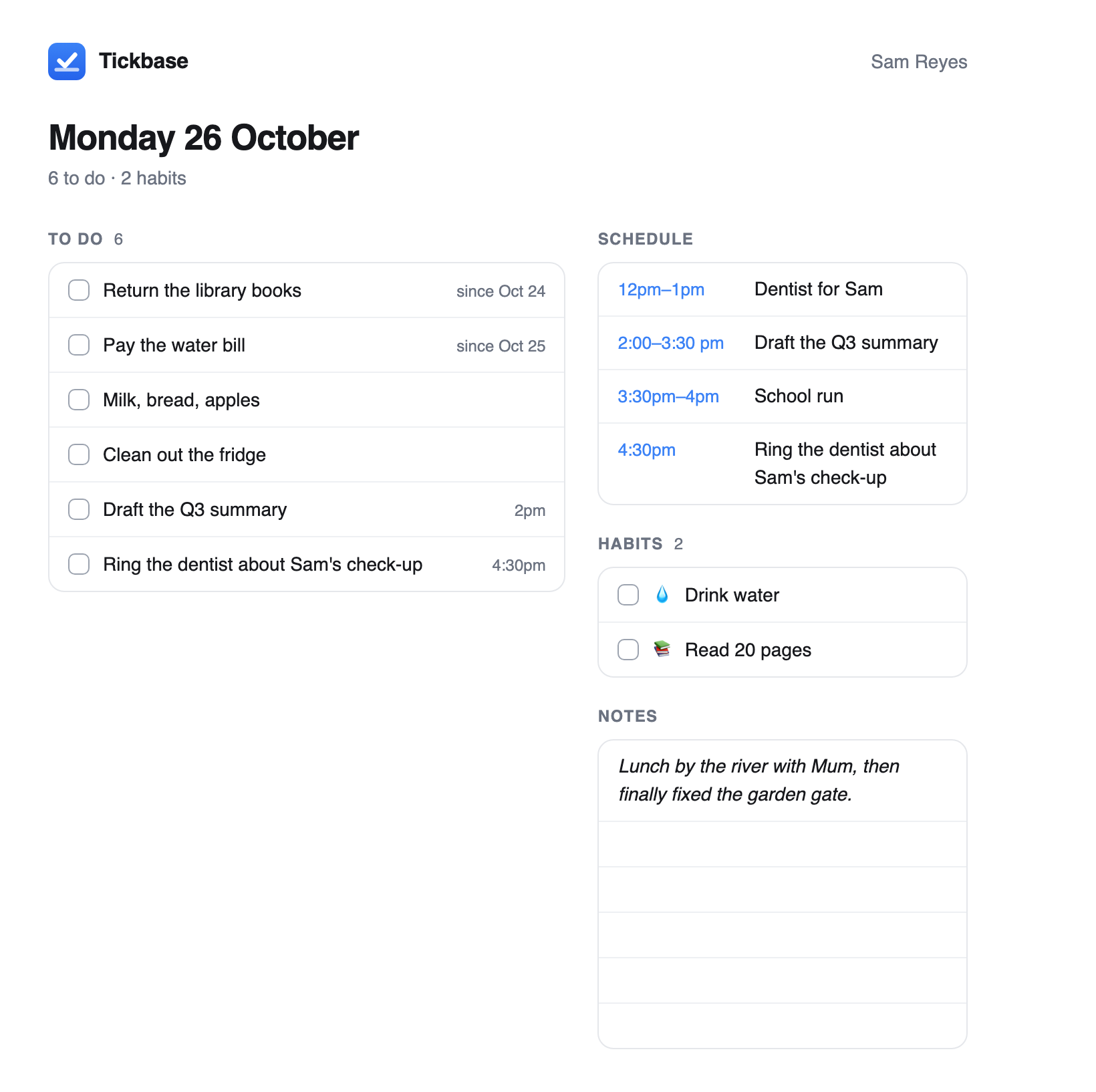
30. The menu bar and system tray
New in Tickbase 1.4.6, and free on every plan. In the desktop app for Mac, Windows and Linux.
The desktop app can keep out of the way and still be one click from Today. On a Mac, Tickbase sits in the menu bar at the top of the screen; on Windows and Linux, in the system tray beside the clock.
- Today, one click away. On a Mac or Windows, click the Tickbase icon and a small Today opens beside it (under the menu bar on a Mac, above the taskbar on Windows): overdue tasks, today's tasks and the day's habits. On Linux, click the icon and choose Today from its menu. Click anywhere else, or press Escape, and it tucks away again.
- Ticking things off. Tick a task or a habit right there, and it syncs like any other tick. Click a task's name to open it in the main window.
- Adding a task. Type into the box at the top and press Return. It goes on today, and quick add reads the rest as it does anywhere: "buy milk friday" goes to Friday, and Tickbase says so.
- Closing the window. Close the main window and Tickbase carries on in the menu bar or tray, so reminders still ring and your tasks keep up with your other devices. The first time, it tells you it's still running.
- The icon's menu. Right-click the icon for a small menu with Open Tickbase and Quit Tickbase.


Turning it on or off
It's on to begin with on a Mac and Windows. Settings → General → Keep Tickbase in the menu bar (in the system tray on Windows and Linux) decides it for that computer only. Turn it off and closing the window quits Tickbase, as it used to.
On Linux it's off until you turn it on, and clicking the icon shows its menu, with Today at the top. Some Linux desktops, plain GNOME among them, only show tray icons once an extension such as AppIndicator is added.
